Installation & First Run
Want to experience command-line visualization (CLI to GUI) on macOS?
CmdWise offers a graphical interface that lets you run common command-line tools with a single click. Follow the steps below to install and launch it on your Apple Silicon device.
System Requirements
- macOS 12 or later
- Built-in system commands work out of the box
- Homebrew and other third-party commands may require macOS 13 or later
- Apple Silicon (M-series) chip
- Adequate disk space
Download & Install
Download
- Visit the CmdWise website and click the “Download Free” button to get the installer.
- Or head to the CmdWise releases page to download the latest version.
Installation Steps
- Double-click the
.dmgfile to mount the image, then drag CmdWise into the Applications folder. - Launch CmdWise from Launchpad.
First-Launch Guide
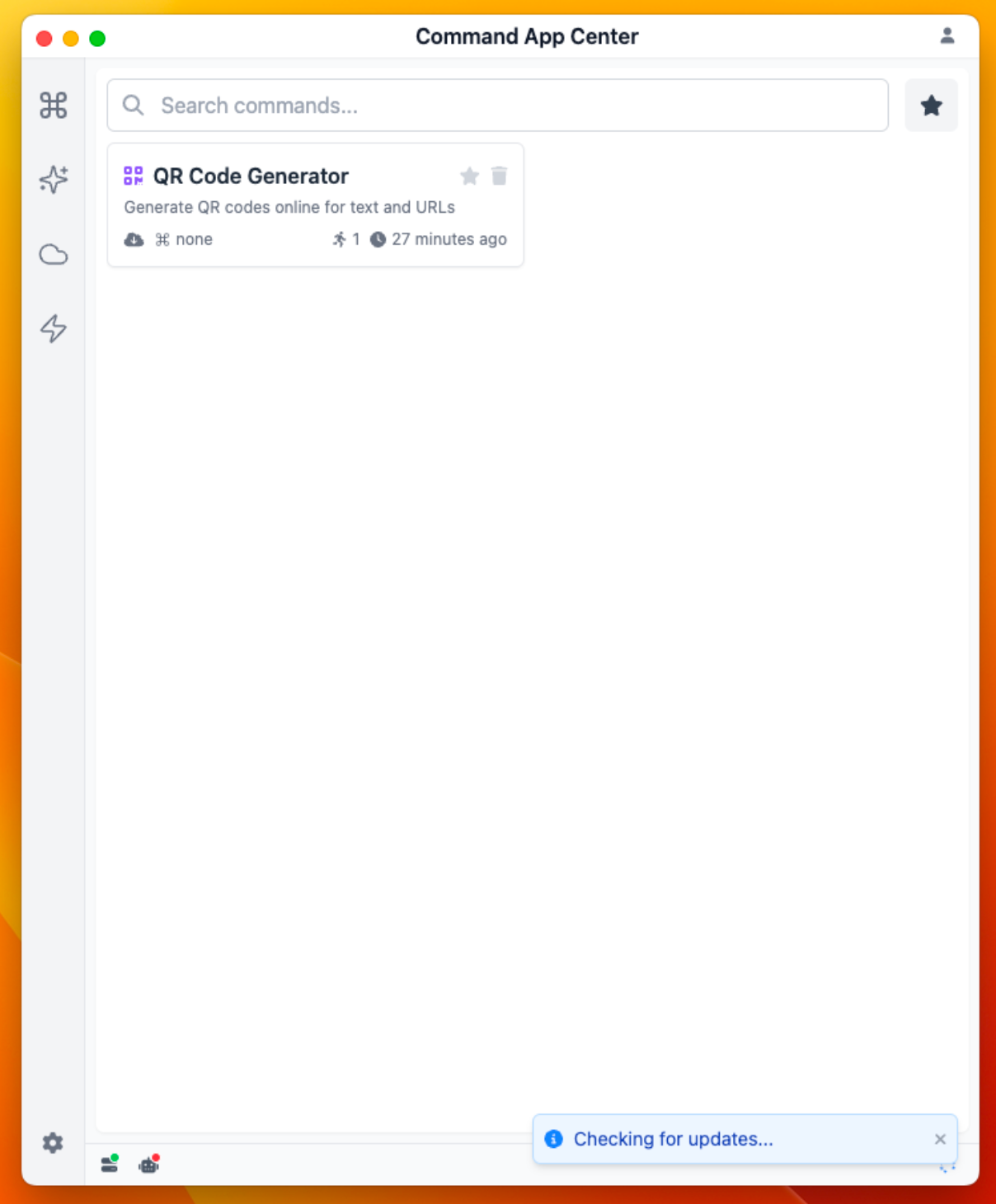
- Upon launch, you'll enter the Command App Center. Since this is your first installation, no Command Apps are available yet, so you can add one.
- Open the Command App Market, select a Command App, and click Download App to start using it (for example, "QR Code Generator").
- Use the visual interface to generate the corresponding command. Other Command Apps work similarly—configure the visual interface and execute the generated command.
Updates
CmdWise automatically checks for new versions at startup and downloads them if available.
You can also manually check for updates—just click the Download icon at the bottom-right corner of the app.