Sips PNG to JPG Converter: Batch Image Format Conversion
This is an application specifically designed for image format conversion. It utilizes macOS's native sips command to quickly batch-convert large numbers of PNG images to the more space-efficient JPG format, making it ideal for web developers and users who need to manage large numbers of screenshots.
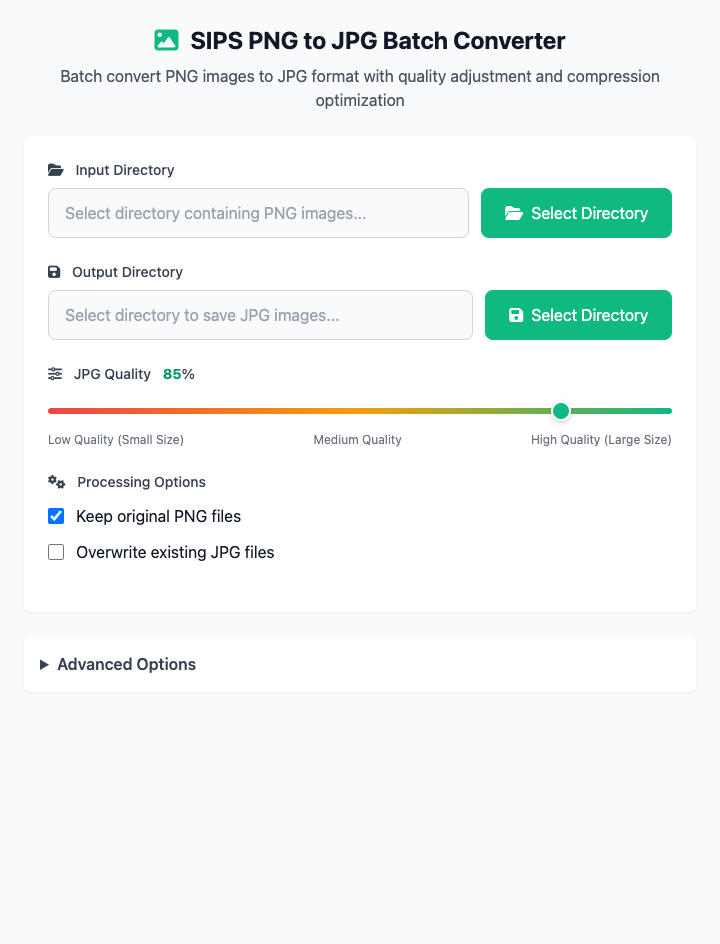
⚡️ Quick Start
- Select Input Directory: Click to select the folder containing the PNG images you want to convert.
- Select Output Directory: Specify a folder to store the converted JPG images.
- Adjust JPG Quality: Keep the default quality of
85. - Click the "Execute" Button: After the command completes, you'll get the converted JPG image files.
🤔 When Should I Use It?
- You have a bunch of PNG images with large file sizes downloaded from the web or obtained from screenshots, and need to convert them to the smaller JPG format to save space or speed up network transmission.
- A website or application only accepts JPG format image uploads, and you need to quickly perform format conversion.
- You want to slightly reduce image quality during conversion to further compress file size.
⚙️ Parameter Description
Input Directory: The folder containing source PNG images. The tool will automatically find all
.pngfiles in this directory.Output Directory: The target folder for saving converted JPG images.
JPG Quality: Set the compression level for output JPG files, ranging from 1 to 100. Lower values result in smaller files but greater quality loss. Usually
75-90is a good balance point.Processing Options:
- Keep Original PNG Files: Check this to not delete the original PNG images during conversion. By default unchecked, meaning original files will be deleted. Please operate with caution.
- Overwrite Existing JPG Files: If there are files with the same name in the output directory, checking this will directly overwrite them.
Filename Pattern (Advanced Option): Enter a wildcard pattern (such as
screenshot*) to convert only PNG files whose names match this pattern.
⚠️ Important Notes
- This command depends on the
sipstool that comes with macOS, so it's only available on macOS. - By default, original PNG files will be deleted after successful conversion. If you need to keep the original files, please make sure to check "Keep Original PNG Files".
- This is a responsive interface, and all your settings will be reflected in real-time in the command area below.
Related Tools
In the CmdWise app market, you can also find other image processing tools:
- Sips Image Batch Processor: If you need to perform scaling or rotation while converting formats.
- cwebp Image Converter: If you want to convert images to the more modern, higher-compression WebP format.
- Sips Image Resizer: Batch modify image dimensions.