PDF Compressor (pdfly): Safely "Diet" Your PDFs
Using the pdfly tool, compress or decompress data streams in PDF files to reduce file size or facilitate debugging. The entire process is completely offline, ensuring your file content remains secure.
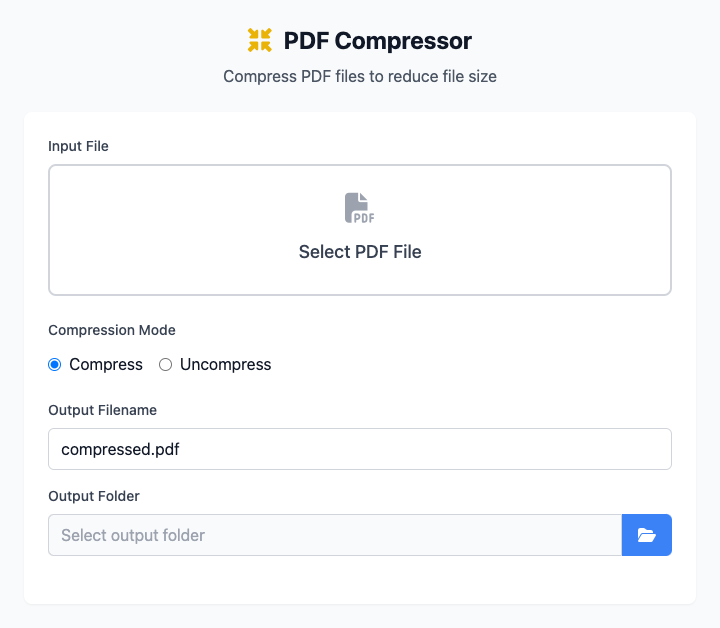
⚡️ Quick Start: Compress a PDF
- Click the file selection area, or directly drag a PDF file into the window.
- Ensure "Compression Mode" is set to Compress.
- The tool will automatically generate an output filename, or you can customize it.
- Click the "Execute" button. After the command completes, you'll get a new compressed PDF file.
🤔 When Should I Use It?
- A PDF file containing many images is too large to send as an email attachment.
- You need to upload a PDF to a website or online system with size restrictions.
- You want to view or debug the internal data streams of a PDF file and need to decompress it first.
- You just merged multiple PDFs and found the new file is too large.
⚙️ Options and Settings
Compression Mode
You can choose to perform two operations on PDF files:
- Compress: This is the most commonly used function. It will try to compress uncompressed data streams in the PDF (for example, some PDFs generated by old software may contain uncompressed images). This is useful for optimizing file size.
- Decompress: This function is mainly for development and debugging. It will expand compressed data streams in the PDF, making it easier for you to view its internal structure.
Click to view: Dependency Installation and Common Issues
Dependency Installation
This tool depends on pdfly. You need to install it via pip by running this command in the terminal:
pip install pdflyCommon Issues (FAQ)
Q: Why didn't my PDF file size change after compression? A: This is most likely because your PDF file's data streams are already in a compressed state, so repeated compression won't have any effect. pdfly's compression function is mainly targeted at PDF files containing uncompressed data streams.
Q: Will compression damage my files? A: No. The compression process is safe, and this tool will not overwrite your original files. Instead, it will generate a new file with a _compressed suffix, leaving your original file intact.
Q: Can I compress a file repeatedly? A: Technically yes, but it's meaningless. Compressing a file that has already been compressed will not change the file size at all.
Technical Notes
- Core Tool: Based on the powerful open-source Python library pdfly.
- Privacy Security: All compression operations are performed locally on your computer, and none of your files are uploaded to network servers.
- System Requirements: macOS 10.12 or higher, with Python and
pdflyinstalled.
Related Tools
In the CmdWise app market, you can also find other PDF processing tools:
- PDF Merger (pdfly): Merge multiple PDFs into one
- Image to PDF Converter (pdfly): Convert multiple images into a single PDF file
- PDF Splitter (pdfly): Split a large PDF into multiple small files