Homebrew Package Manager: Easily Manage Your Mac Software
A graphical interface designed for Homebrew that lets you say goodbye to typing brew install commands. Through it, you can easily search and install thousands of powerful command-line tools.
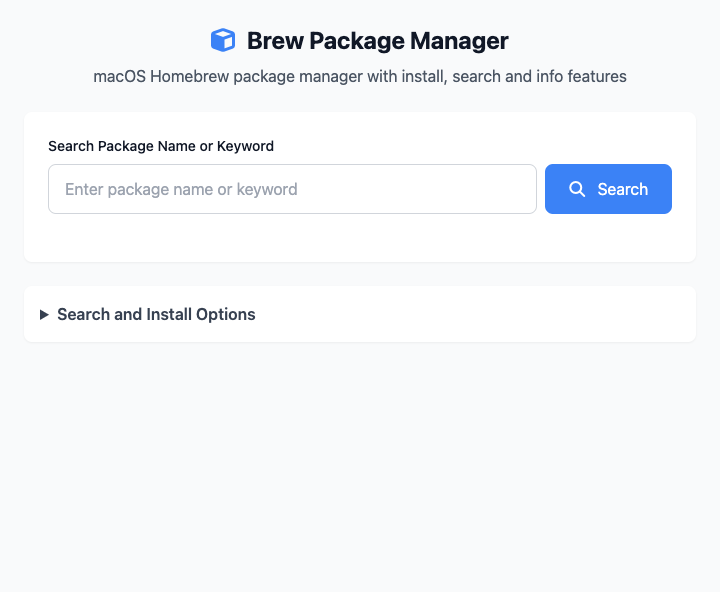
⚡️ Quick Start: Install a Software (using wget as example)
- In the top search box, enter
wget. - From the search results, click
wgetto install it. - (Optional) In advanced options, check installation parameters as needed.
- Wait for installation to complete! Now you can use the
wgetcommand in any terminal on your system.
🤔 When should I use it?
- You know a command-line tool is useful (like
tree,htop), but you're too lazy to open terminal and type commands to install. - You want to search whether a certain tool exists in the Homebrew repository.
- You're a developer who needs to frequently install various development environments and tools.
⚙️ Main Features
Search & Install
Enter the tool name you're looking for in the search box, and CmdWise will automatically execute brew search [keyword] for you. Click on a package in the search results to view detailed information and install it. During installation, CmdWise will execute brew install [package_name] for you.
Installation Options
In the advanced options area, you can add extra parameters to the installation command:
- Force Install (
--force): Force overwrite installation. - Verbose Output (
--verbose): Display detailed logs of the installation process. - Dry Run (
--dry-run): Only simulate the installation process without actually executing it.
Click to view: Dependency Installation & FAQ
Dependency Installation
This tool depends on Homebrew. Most developers and geeks already have it installed on their Macs. If your computer doesn't have it yet, please open the "Terminal" app first, paste and run the following command to install Homebrew:
/bin/bash -c "$(curl -fsSL https://raw.githubusercontent.com/Homebrew/install/HEAD/install.sh)"The installation process may take a few minutes, please be patient.
Frequently Asked Questions (FAQ)
Q: What is Homebrew? Why do I need it? A: Homebrew is the most popular "package manager" on macOS. You can think of it as an "app store" for command-line tools. Through it, you can use simple commands (like brew install wget) to install and manage thousands of free, powerful open-source software.
Q: Where are the installed software located? A: Homebrew installs all software uniformly in /opt/homebrew/bin (Apple Silicon Mac) or /usr/local/bin (Intel Mac) directories, and automatically configures the system path for you, so you can use them directly in any terminal.
Q: What's the difference between this tool and using command line directly? A: There's no functional difference, it just provides you with a convenient graphical interface. You no longer need to memorize commands like install, upgrade, uninstall - all operations become intuitive button clicks, and you can clearly see the list of installed software.
Technical Notes
- Core Tool: Essentially a graphical wrapper for the
brewcommand line. - Real-time: All operations provide real-time feedback from Homebrew's output logs, so you can clearly see what's happening behind the scenes.
- Security: All operations are as secure as running
brewcommands directly in the terminal.
Related Tools
In the CmdWise app marketplace, you can also find other system management tools:
- Large Folder Finder: Analyze and clean up disk usage
- Large File Finder: Find large files taking up disk space
- Port Process Manager (lsof): Manage network ports and processes