High-Res File Preview Generator: "Peek" Like Finder
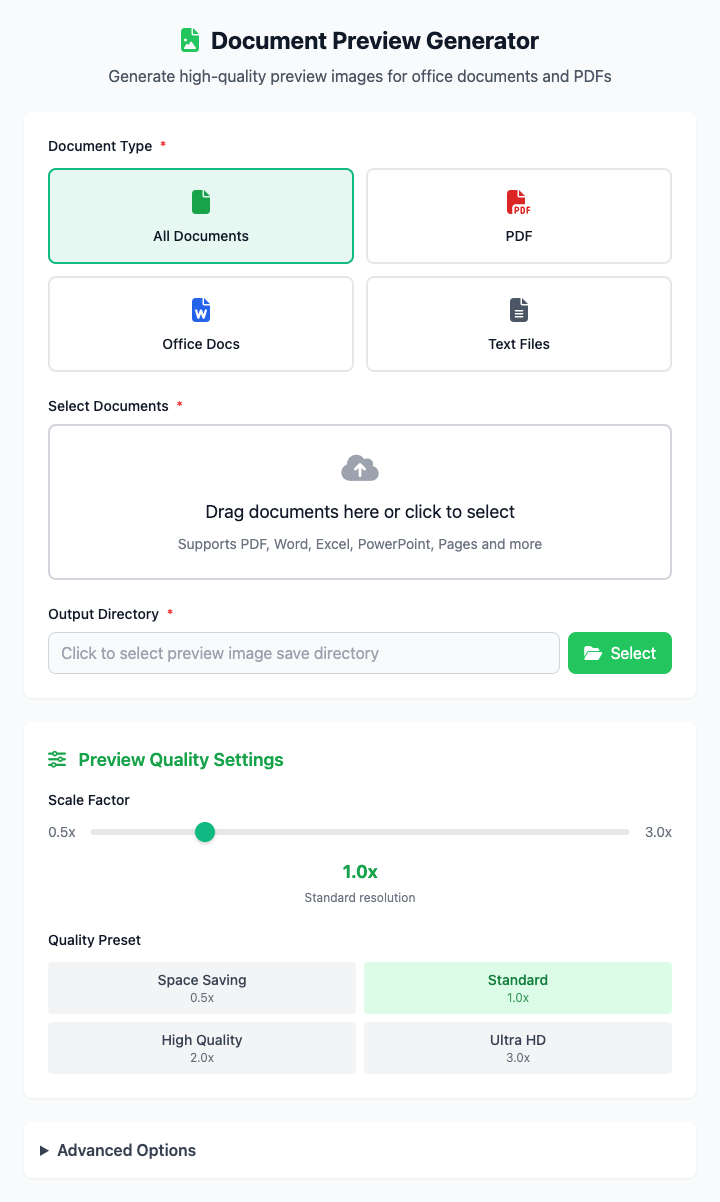
This tool leverages macOS's powerful QuickLook functionality to create high-quality preview images for almost any file type (such as PDF, Word/Excel/Pages documents, text files, images, etc.), with effects consistent with what you see when pressing spacebar in Finder.
⚡️ Quick Start
- Select File: Click the file selection area to choose a document you need to generate a preview for.
- Set Output Parameters: Keep the default output format (PNG) and size (1024).
- Choose Save Directory: Specify where the generated preview image should be saved.
- Click "Execute" Button: After the command completes, you'll get a preview image file.
🤔 When Should I Use It?
- You want to quickly view a file's content without opening heavyweight applications (like Keynote, Photoshop).
- You receive a file in an unknown format and want to safely preview it before opening.
- You need to generate high-definition cover images or preview images for files, for use in websites, blogs, or documents.
⚙️ Parameter Settings
Select File: Click to choose one or more source files. Supports batch processing.
Output Format: Defines the file format of the preview image.
PNG: Lossless format, highest image quality, larger file size.JPG: Lossy format, smaller file size, suitable for web transmission.
Image Quality: When output format is
JPG, this slider can be used to control the compression level (0-100). Higher values mean better quality.Maximum Width/Height: Sets the maximum size of the preview image (in pixels). The tool will scale proportionally to fit this limit. For example, setting it to 800 means the width or height of the generated image won't exceed 800px.
Save Directory: All generated preview images will be saved in this folder.
⚠️ Important Notes
- This command heavily depends on macOS's
qlmanagetool, so it's only effective on macOS. - Preview images will be saved in the format
[original-filename].pngor[original-filename].jpgin the specified output directory. - After parameter adjustments, the command below will update in real-time. This is a responsive interface with no "Run" button.
Related Tools
In the CmdWise app marketplace, you can also find other file preview and processing tools:
- App Icon Extractor: Extract high-definition icons from macOS applications.
- File Thumbnail Generator: Quickly create thumbnails of specified sizes for files or images.