say Command GUI: macOS Native Offline Text-to-Speech
Use macOS's built-in say command to batch convert each line in a text file into individual audio files. The entire process is completely offline, no internet connection required, ensuring your privacy is absolutely secure.
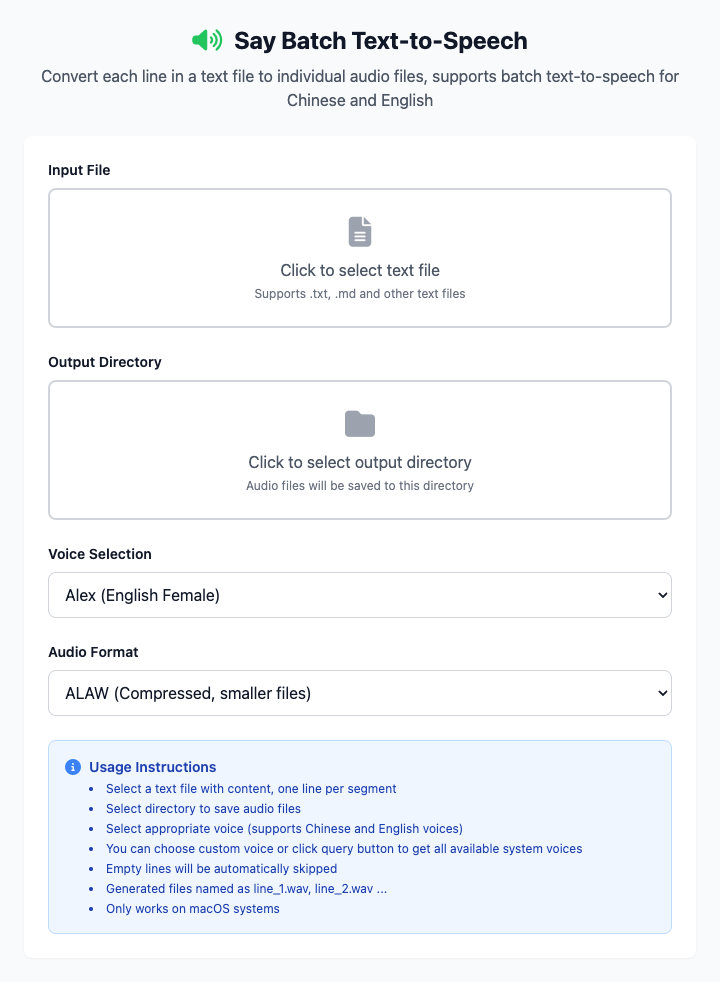
⚡️ Quick Start: Convert a Text File
- Click the "Input File" area to select a
.txtor.mdfile containing multiple lines of text. - Click the "Output Directory" area to select a folder for saving audio files.
- (Optional) Select a voice from the dropdown menu, e.g., Ting-Ting for Chinese.
- Click the "Execute" button. After the command completes, you'll get a bunch of converted audio files.
🤔 When Should I Use It?
- You need to batch generate lots of short audio clips, such as game character voices, word card pronunciations, etc.
- You're in an environment without internet access but need text-to-speech functionality.
- You're handling content that's very private or sensitive and don't want to send it to any online servers.
- You want to use Apple's native, purest speech synthesis voices.
⚙️ Options and Settings
Input File
You need to select a text file (like .txt, .md) as input. Please remember that each line in the file will generate a separate audio file. Empty lines will be automatically skipped.
Voice Selection
You can choose a commonly used voice from the preset list, or select "Custom Voice..." and fill in your desired system voice name in the input box below. Click the "Query Voices" button to get a list of all available voices on your current system.
- How to find the best voice? You can open
System Settings > Accessibility > Spoken Content > System Voice, where you can manage and download more high-quality voices (like "Ting-Ting (Enhanced)"). - Chinese Recommendation: Ting-Ting
- English Recommendation: Samantha (American), Daniel (British)
Audio Format
This tool generates audio files in .wav container format. You can select the internal data encoding format from the "Audio Format" dropdown menu.
alaw/ulaw: Compressed formats, smaller file sizes but with quality loss.LEI16/BEI18: Uncompressed PCM formats, better quality but larger file sizes.
For most purposes, using the default alaw is sufficient. If you need higher quality audio, you can later use Sox Audio Converter to convert to other lossless formats.
Click to view: `say` vs `edge-tts` Comparison and Common Questions
Comparison: say (Native Offline) vs. Edge TTS (Online)
| Feature | say (Native Offline) | Edge TTS (Online) |
|---|---|---|
| Network | Not required at all | Must be connected |
| Privacy | Extremely high, data never leaves local | Text is sent to Microsoft servers |
| Voice Quality | Good but slightly mechanical | Very natural, close to human |
| Voice Selection | Limited, depends on system installation | Very rich, includes various dialects and styles |
| Batch Processing | Very convenient, generates files by line | Relatively cumbersome, requires multiple operations |
| Recommended Scenarios | Batch, offline, high privacy needs | Pursuing voice naturalness, single long texts |
Common Questions (FAQ)
Q: Why can't I find the "Ting-Ting" voice? A: You need to manually download it in the system. Please go to System Settings > Accessibility > Spoken Content > System Voice, find "Ting-Ting" in the voice list and click the download button. After download is complete, restart CmdWise to see it.
Q: The generated wav files are so large, can I directly generate MP3? A: The say command itself doesn't support direct MP3 output. But you can conveniently use our Sox Audio Converter tool to batch convert the generated wav files to MP3 format.
Q: Can I convert very long text? A: Yes, but the say tool is more suitable for handling short sentences and paragraphs. For very long articles, it's recommended to use Edge TTS, which has better sentence segmentation and emotional processing.
Technical Details
- Core Tool: Based on macOS native
saycommand-line tool. - System Requirements: Any version of macOS comes with the
saycommand built-in.
Related Tools
In the CmdWise app marketplace, you can also find other audio processing tools:
- Edge TTS Text-to-Speech: Use Microsoft's online service to generate more natural voices
- Sox Audio Converter: Convert between various audio formats like aiff, mp3, wav
- FFmpeg Audio Extractor: Extract audio tracks from videos