PDF Splitter: Break Down Large PDFs Into Single Pages
Using the pdfly split command, quickly and automatically split a multi-page PDF document into a bunch of independent, single-page PDF files.
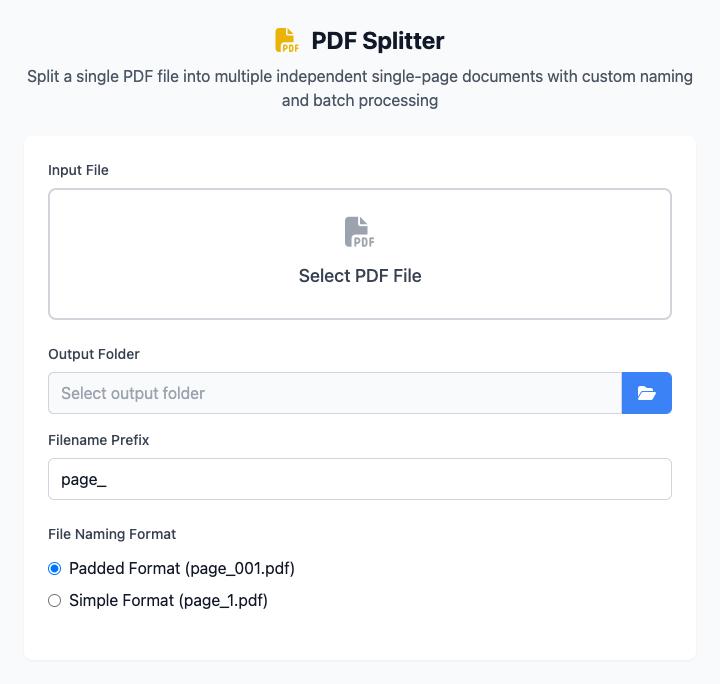
⚡️ Quick Start: Split a 10-Page Document
- Click to select an input file (the multi-page PDF you want to split).
- Click the "Query Page Count" button to get and confirm the total page count of that PDF.
- In "Page Settings", ensure start page is
1and end page is10. - Select an output folder where all split single-page files will be saved.
- Click the "Execute" button. After the command completes, you'll get a bunch of split single-page PDF files.
🤔 When Should I Use It?
- You have a scanned PDF containing multiple receipts and need to save each receipt as an independent file.
- You have a multi-page contract and need to send each page separately to different people for review.
- You want to turn each page of an e-book into a separate PDF for processing by other programs.
⚙️ Parameter Description
Input File: The multi-page PDF file you want to split.
Output Folder: A directory to store all the single-page PDF files generated after splitting.
Filename Prefix: Specify a unified prefix for all output files, default is
page_.File Naming Format:
- Zero-padded Format: (Recommended) Output files will be named in the format
page_001.pdf,page_002.pdf...page_010.pdf. Zero-padding ensures files are properly sorted numerically in Finder. - Simple Format: Output files will be named in the format
page_1.pdf,page_2.pdf...page_10.pdf.
- Zero-padded Format: (Recommended) Output files will be named in the format
Page Settings
- Query Page Count: (Important Step) Before splitting, it's strongly recommended to click this button to execute the
pdfly metacommand to get and confirm the document's total page count. - Start Page / End Page: Define the page range you want to split. For example, if a document has 100 pages but you only want to split pages 20 to 30, you can set it here.
⚠️ Dependency Installation
This tool depends on the pdfly Python package. You need to install Python and pip on your Mac first, then run this once in the terminal:
bash
pip install pdflyRelated Tools
In the CmdWise app market, you can also find other PDF processing tools:
- PDF Page Extractor (pdfly): Extract a page range but generate only one file instead of multiple
- PDF Merger (pdfly): Re-merge multiple independent PDF files (such as split pages) into one