Sips Image Converter: Native macOS Image Processing
Leverage the SIPS tool built into macOS to quickly convert image formats, adjust sizes and quality, without installing any third-party software.
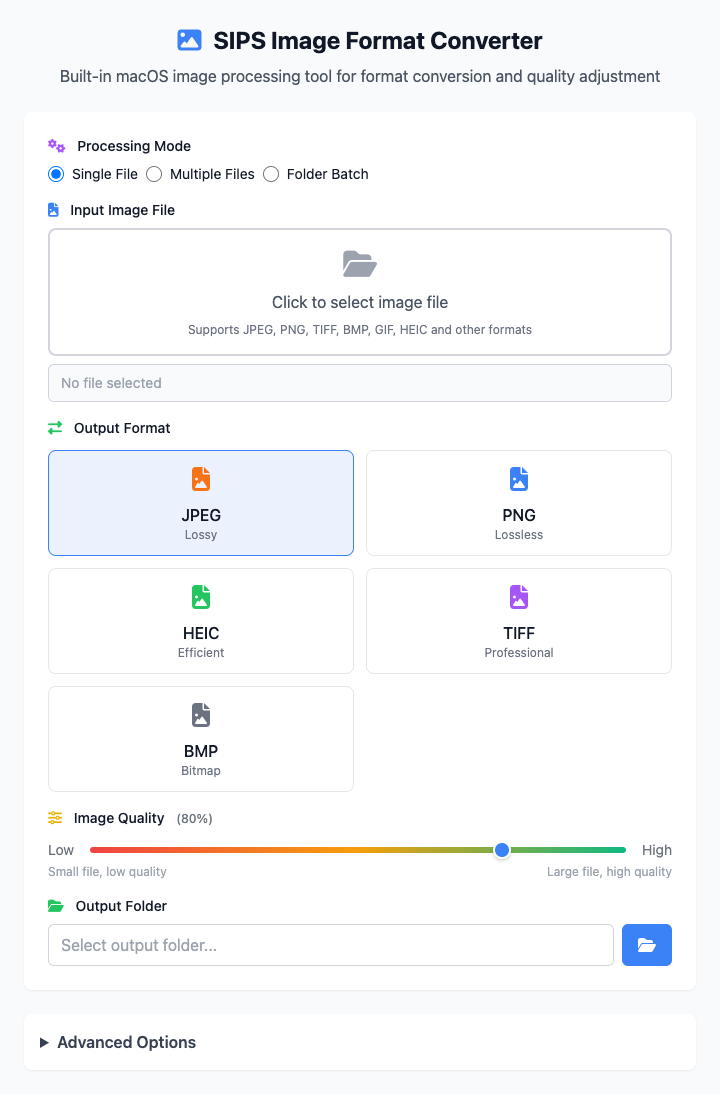
⚡️ Quick Start: Convert an Image
- Select processing mode (e.g., "Single File").
- Click the file selection area to choose one or more images.
- Select your desired output format (e.g., JPEG).
- (Optional) Adjust image quality or set dimensions in advanced options.
- Click the "Execute" button. After command execution completes, you'll get the converted image files.
🤔 When should I use it?
- Want to convert screenshots (PNG format) to smaller JPEG format to send to others.
- Want to uniformly resize a bunch of photos taken with your phone (HEIC or JPEG).
- Received some uncommon image formats (like TIFF, BMP) and want to convert them to universal formats.
- Need to batch process many images with the same format or size conversion.
⚙️ Options & Settings
Processing Mode
You can choose three different modes to process images:
- Single File: Convert one image at a time.
- Multiple Files: Select multiple images at once and convert them all to the target format.
- Folder Batch: Select a folder and the tool will automatically convert all supported images in that folder.
Output Format
Choose the image format you want to get.
- JPEG: (Recommended) Most commonly used format, small files, best compatibility, suitable for most photos and color images.
- PNG: If your image needs transparent background (like logos, icons), or you don't want to lose any quality, choose this.
- HEIC: High-efficiency image format commonly used on Apple devices, achieving smaller file sizes while maintaining high quality.
- TIFF / BMP: Professional formats with very large files, usually only used under specific requirements.
Quality Adjustment (JPEG only)
Drag the slider to control the compression level of JPEG images.
- Drag left and the image file will become smaller, but quality will slightly decrease. Usually choosing 80-90 is the best balance point.
Click to view: Advanced Options & FAQ
Advanced Options: Size Adjustment
Here you can scale your images. "Maintain aspect ratio" is checked by default, so you only need to set width or height, and the tool will automatically calculate the other side to prevent image distortion.
Format Selection Guide
| Format | Advantages | Disadvantages | Recommended Scenarios |
|---|---|---|---|
| JPEG | Small files, good compatibility | Lossy compression, no transparency | Photos, complex images, web sharing |
| PNG | Lossless compression, supports transparency | Relatively larger files | Logos, icons, images needing transparent background |
| HEIC | Efficient, good quality | Slightly poor compatibility outside Apple ecosystem | iPhone photos, space saving |
| TIFF | Lossless, extremely high quality | Huge files, not suitable for web | Professional photography, print publishing |
| BMP | Uncompressed, system compatible | Extremely large files | Very few scenarios requiring compatibility with old systems |
Frequently Asked Questions (FAQ)
Q: Why is the converted image distorted? A: This might be because you unchecked "Maintain aspect ratio" in the advanced options "Resize" section and set disproportionate width and height. It's recommended to keep it checked and only set one value.
Q: What if image quality decreases after conversion? A: If you chose JPEG format, slight quality decrease is normal. You can try increasing the quality slider (e.g., to 95), or directly choose lossless PNG or TIFF formats.
Q: Does this tool need separate installation? A: No. It uses the sips command built into macOS, which is its biggest advantage: native, efficient, secure.
Technical Notes
- Core Tool: Based on macOS native
sips(Scriptable Image Processing System). - System Requirements: macOS 10.12 or higher.
- Performance: Native tools process very fast, converting dozens of images usually takes only seconds. All processing is done locally, files are not uploaded.
Related Tools
In the CmdWise app marketplace, you can also find other image processing tools:
- WebP Image Converter: Convert to more modern, smaller WebP format
- ImageMagick Sprite Sheet Maker: Merge multiple small images into one large image
- FFmpeg GIF Maker: Convert video clips to GIF animations