FFmpeg Video to MP4 Converter: Visual Video Conversion
Convert MOV, AVI, MKV and almost all other video formats quickly to the most compatible MP4 format, without learning and memorizing complex FFmpeg command lines.
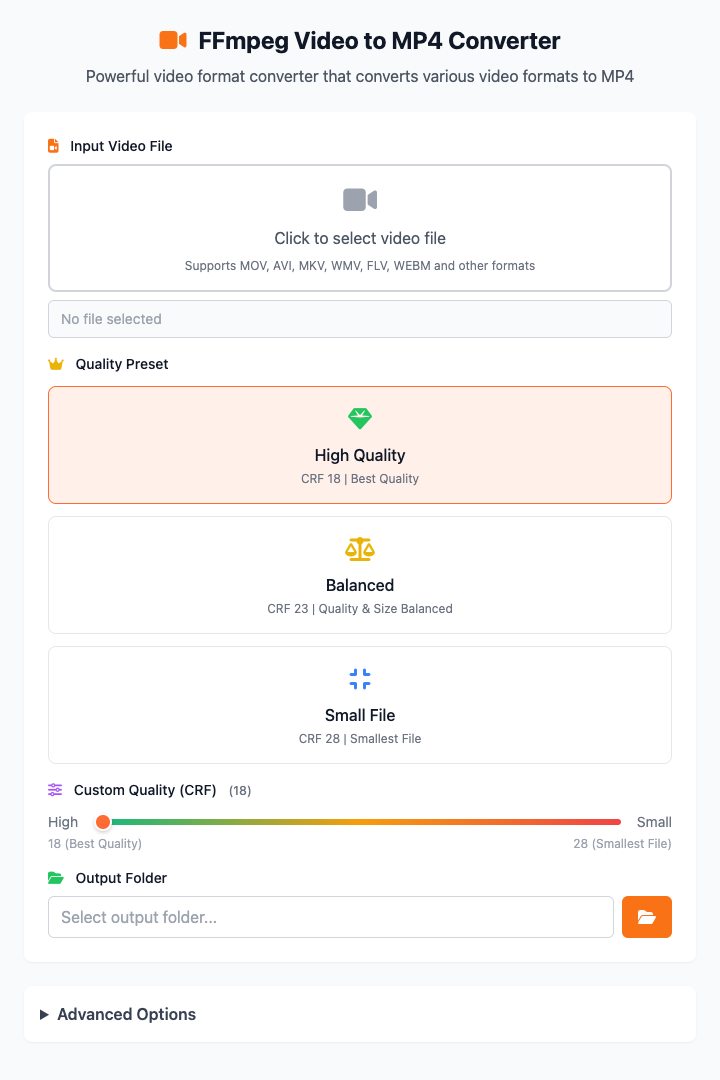
⚡️ Quick Start: Convert a Video
- Click the file selection area, or directly drag a video file into the window.
- Select a quality mode, usually choose Balanced Mode.
- Click the "Execute" button. After command execution completes, you'll get a converted MP4 file.
🤔 When should I use it?
- iPhone-recorded MOV videos that you want to play on Android phones or Windows computers.
- Downloaded MKV or AVI format movies that you want to watch on tablets or TVs.
- Video files are too large and you want to make them smaller without significantly affecting quality, for easy sharing or storage.
- Need to standardize various video formats to MP4 for easier management and editing.
⚙️ Options & Settings
Quality Presets
We provide three preset modes for quickly setting video compression rate (CRF). The smaller the CRF value, the better the quality, but the larger the file.
- High Quality (CRF 18): Suitable for professional use or master archiving, nearly lossless quality but very large files.
- Balanced (CRF 23): (Recommended) Excellent balance between quality and file size, suitable for most daily use scenarios.
- Small File (CRF 28): Significantly compresses video, resulting in very small files, suitable for sharing on platforms with file size restrictions like WeChat.
You can also fine-tune the CRF value by dragging the Custom Quality Slider below the presets.
Click to view: Advanced Options & FAQ
Advanced Options
Here you can have more precise control over the conversion process.
- Encoding Speed: Affects conversion time and compression efficiency.
Mediumis the best balance between speed and effectiveness.SloworVery Slowwill take longer but achieve better compression (smaller files). - Audio Codec: Choose how to handle audio.
AACis the recommended option for high quality and good compatibility,MP3is also commonly used. If you want to preserve original audio tracks (like multi-language tracks), chooseCopy. - Resolution: If you need to reduce video dimensions, you can select standard resolutions here (like 1080p, 720p).
- Frame Rate: Can force video frame rate to be unified as 30fps, 25fps or 24fps.
Dependency Installation
Before using this tool, your Mac needs FFmpeg installed first. If you have Homebrew installed, just run once in terminal:
brew install ffmpegFrequently Asked Questions (FAQ)
Q: What if conversion is very slow? A: Try selecting Fast in the "Encoding Speed" of advanced options. Additionally, closing other running large software also helps.
Q: What if the converted file is still too large? A: Choose a higher CRF value in "Quality Presets", for example adjust from 23 to 28, and file size will significantly decrease. You can also reduce video resolution in advanced options.
Q: Which input formats are supported? A: Almost all formats are supported, including but not limited to MOV, AVI, MKV, WMV, FLV, WEBM, etc. Output format is unified to the most compatible MP4 (H.264/AAC).
Technical Notes
- Core Tool: Based on the powerful open-source video processing library FFmpeg.
- Performance: This tool fully utilizes FFmpeg's multi-threading capabilities for fast conversion. All processing is done locally, your video files are not uploaded, ensuring privacy and security.
- System Requirements: macOS 12.0 or higher.
Related Tools
In the CmdWise app marketplace, you can also find other video processing tools:
- FFmpeg GIF Maker: Convert video clips to GIF animations
- FFmpeg Audio Extractor: Extract audio files from videos
- FFmpeg Video Clipper: Precisely trim video segments