Sox Audio Converter: The "Swiss Army Knife" of Audio
Using the powerful SoX (Sound eXchange) tool, perform high-quality conversions between MP3, WAV, FLAC, AAC, OGG and almost all mainstream audio formats.
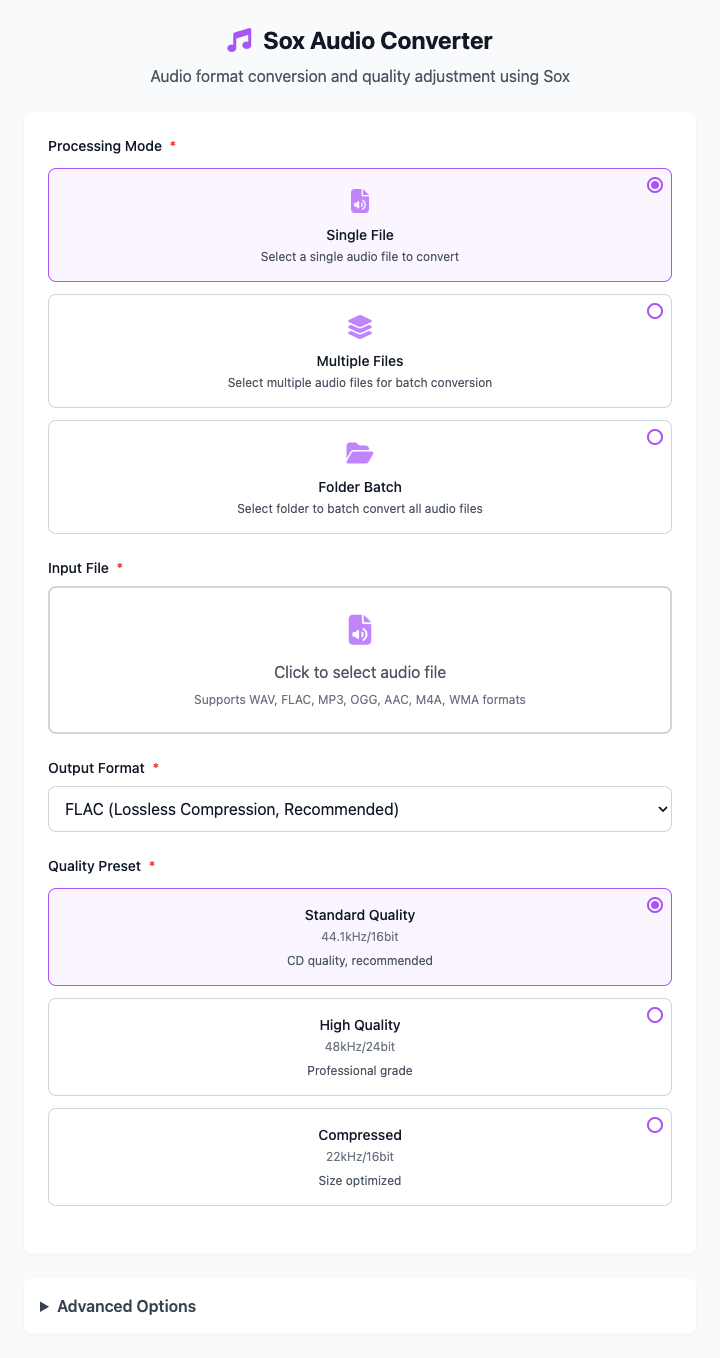
⚡️ Quick Start: Convert an Audio File
- Select a processing mode, such as "Single File Conversion".
- Click the input area and select one or more audio files.
- In output format, choose your desired target format (e.g., mp3).
- Select a quality preset, usually "Standard Quality" is sufficient.
- Click the "Execute" button. After the command completes, you'll get the converted audio file.
🤔 When Should I Use It?
- The
.wavfile from your voice recorder is too large, and you want to convert it to MP3 for easy storage and sharing. - You generated
.aiffor.wavfiles from thesaycommand and want to convert them to the universal MP3 format. - Downloaded music is in
.flaclossless format, and you want to convert it to MP3 for your phone. - You need to batch convert all audio files in a folder to a different format.
⚙️ Options and Settings
Processing Mode
You can choose three different modes to process audio:
- Single File Conversion: Convert only one audio file at a time.
- Multi-File Conversion: Select multiple audio files at once and convert them all to the target format.
- Folder Batch: Select a folder, and the tool will automatically convert all supported audio files in that folder.
Output Format
Choose the target format you want to achieve.
- mp3: (Recommended) The most popular, most compatible lossy compression format. Maintains acceptable audio quality while minimizing file size.
- wav: Common high-quality lossless format, larger files, commonly used as source files for audio editing.
- flac: Popular lossless compression format, smaller than wav but completely lossless audio quality, suitable for audiophile collections.
- aac: Modern lossy compression format, successor to MP3, better audio quality at the same bit rate.
- ogg: An open and free lossy compression format, may have higher compression ratio than mp3.
Quality Presets
You can quickly set the sample rate and bit depth of output audio by selecting presets.
- Standard Quality: 44.1kHz / 16bit. Equivalent to CD quality, suitable for most scenarios.
- High Quality: 48kHz / 24bit. Achieves professional-grade audio quality, suitable for scenarios with higher audio quality requirements.
Click to view: Dependency Installation and Common Issues
Dependency Installation
This tool depends on SoX. You need to install it via Homebrew by running this once in the terminal:
brew install soxTo support MP3 format, you usually also need to install lame:
brew install lameCommon Issues (FAQ)
Q: What is SoX? How does it differ from FFmpeg? A: SoX is known as the "Swiss Army Knife of audio processing" - it's a very powerful and focused command-line audio processing tool. In comparison, FFmpeg focuses more on video and audio-video encoding/decoding. For pure audio conversion and processing, SoX is usually considered more professional and refined.
Q: Which format should I use? A:
- Daily listening, sharing: Use MP3 or AAC.
- Professional audio editing: Use WAV as source files.
- Collecting high-quality music: Use FLAC.
Q: Why did MP3 conversion fail? A: Most likely because you haven't installed the lame library, which SoX needs to encode MP3 files. Please refer to the "Dependency Installation" section above for installation.
Technical Notes
- Core Tool: Based on SoX - Sound eXchange command-line tool.
- System Requirements: macOS 10.12 or higher, with
soxandlameinstalled.
Related Tools
In the CmdWise app market, you can also find other audio processing tools:
- Edge TTS Text-to-Speech: Convert text to MP3 audio
- say Batch Text-to-Speech: Use macOS native command to convert text to aiff audio
- FFmpeg Audio Extractor: Extract audio tracks from video files