PDF Page Extractor: Easily "Trim" Your PDF
Using the pdfly cat command, precisely extract the single or multiple pages you need from a complete PDF document and merge them into a new, smaller PDF file.
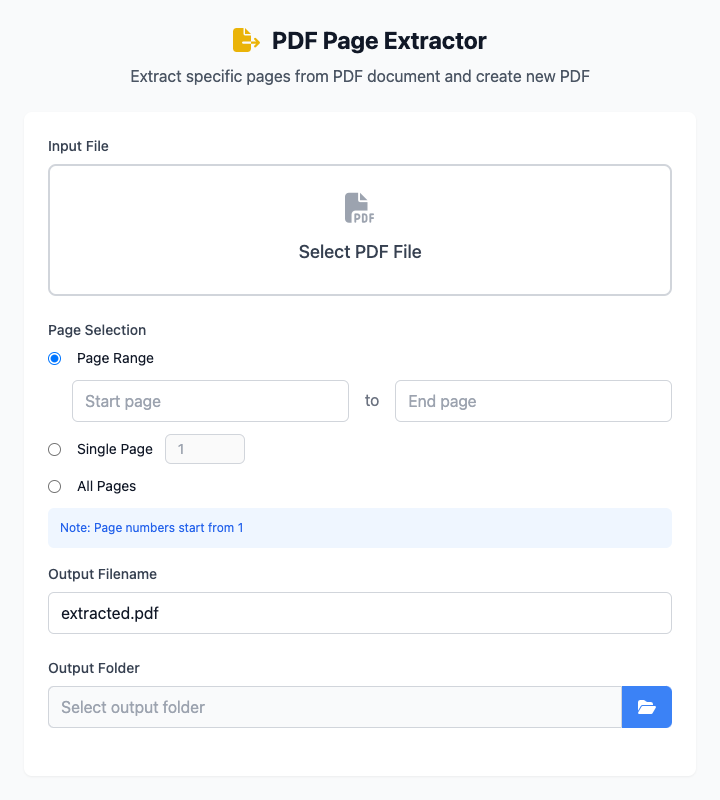
⚡️ Quick Start: Extract Pages 2 to 5
- Click to select an input file (the PDF you want to extract pages from).
- In "Page Selection", ensure Page Range mode is selected.
- In the input boxes, enter start page
2and end page5respectively. - Specify output filename and output folder.
- Click the "Execute" button. After the command completes, you'll get an extracted PDF file.
🤔 When Should I Use It?
- From a hundred-page report, you only need a specific chapter to send to colleagues.
- From a scanned e-book, you only want to extract the cover and table of contents.
- You need to separately extract the signature page from a contract for archiving.
- You want to split a large PDF file into multiple smaller files.
⚙️ Parameter Description
Page Selection
This is the core of this tool, providing three flexible extraction modes. Please note that all page numbers start from 1.
Page Range: Used to extract a continuous page interval.
- Example: To extract pages 10 to 20, enter
10for start page and20for end page.
- Example: To extract pages 10 to 20, enter
Single Page: Extract only one specific page.
- Example: To extract page 5, select this mode and enter
5.
- Example: To extract page 5, select this mode and enter
All Pages: Equivalent to copying the entire PDF document.
Output Settings
- Output Filename: Specify a name for your newly generated PDF file containing only the selected pages.
- Output Folder: Choose the save location for the new PDF file.
⚠️ Dependency Installation
This tool depends on the pdfly Python package. You need to install Python and pip on your Mac first, then run this once in the terminal:
bash
pip install pdflyRelated Tools
In the CmdWise app market, you can also find other PDF processing tools:
- PDF Merger (pdfly): Merge multiple independent PDF files (such as extracted pages) into one
- PDF Info Viewer (pdfly): View PDF total page count and other metadata
- PDF Compressor (pdfly): "Diet" your extracted new PDF files