Batch File Renamer: Say Goodbye to Repetitive Work
This is an efficient file management application that allows you to modify the names of large numbers of files at once according to set rules. Whether it's adding shooting date prefixes to photos or arranging documents uniformly by sequence numbers, it can easily complete these tasks, freeing you from tedious repetitive operations.
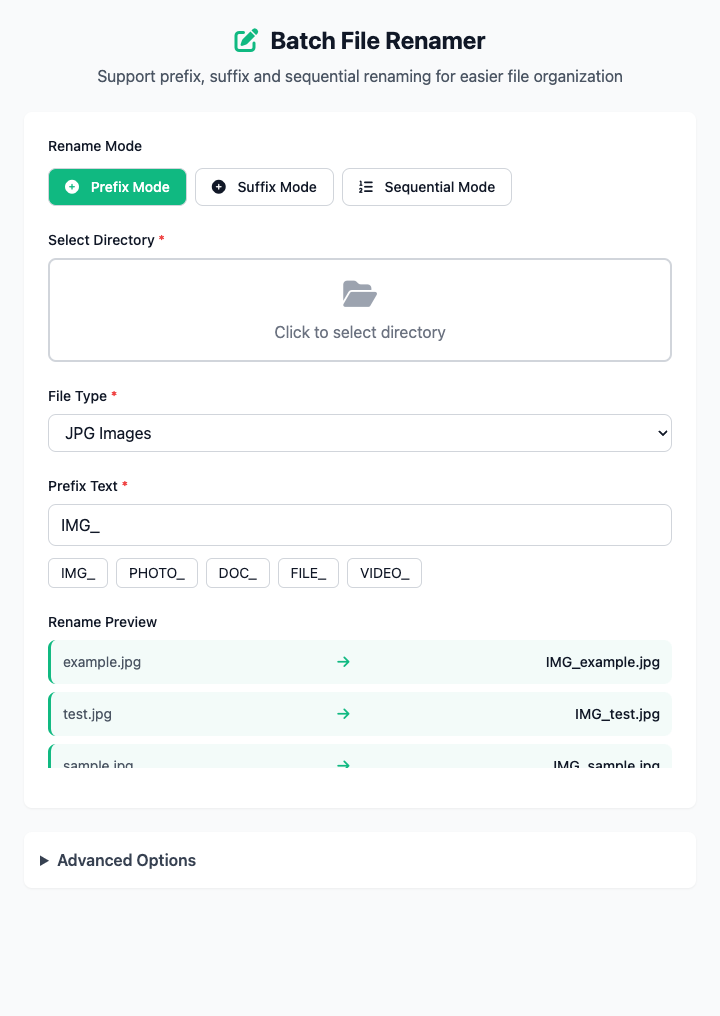
⚡️ Quick Start
- Select Mode: Keep the default "Prefix Mode".
- Select Directory: Click to choose the folder containing files you want to rename.
- Select File Type: Choose the file extension you want to operate on from the dropdown, e.g.,
jpg. - Set Prefix: Enter the prefix you want to add, e.g.,
Travel-Photos-. - Click "Execute" Button: After the command completes, you'll get a bunch of renamed files.
🤔 When Should I Use It?
- You downloaded a bunch of photos with filenames like
IMG_1234.JPG, and you want to uniformly change them toTravel-Photos-001.jpgformat. - You need to batch replace
_finalsuffixes with_archivein project files. - You want to uniformly add date prefixes to file names for easy chronological sorting.
⚙️ Parameter Settings
Rename Mode:
- Prefix Mode: Add specified text before the original filename.
- Suffix Mode: Append specified text after the original filename (before the extension).
- Sequential Mode: Rename files in alphabetical order to "prefix + incremental number" format.
Select Directory: Specify the target folder for batch rename operations.
File Type: Define the extension of files to be renamed.
Prefix/Suffix Text: In corresponding modes, enter the string to be added. We also provide some common presets, like date
2024-07-16-.Sequential Settings (Only in Sequential Mode):
- Sequential Prefix: Fixed text added before the numeric sequence, like
image-. - Starting Number: Set the starting number for the first file, like
1or100. - Number of Digits: Control the length of the sequence number. For example, setting it to
3will pad sequence1to001.
- Sequential Prefix: Fixed text added before the numeric sequence, like
⚠️ Important Notes
- This operation will directly modify file names. Please operate carefully and consider backing up important files before operation.
- The generated command is a
forloop that willcdto your specified directory to execute. Please ensure the terminal has access to that directory. - This is a responsive interface - after adjusting parameters, the preview and command below will update in real-time.
Related Tools
In the CmdWise app marketplace, you can also find other file management tools:
- Large Folder Finder: Quickly find large files and folders taking up disk space.
- .DS_Store Cleaner: Clean .DS_Store files generated by macOS in folders.
- Symbolic Link Creator: Create aliases (shortcuts) for files or folders.