File Thumbnail Generator: Quickly Create Thumbnail Previews
This tool is specifically designed for scenarios requiring processing of large numbers of files. It can use macOS's QuickLook functionality to quickly and batch generate PNG format thumbnails of specified sizes for your selected multiple files.
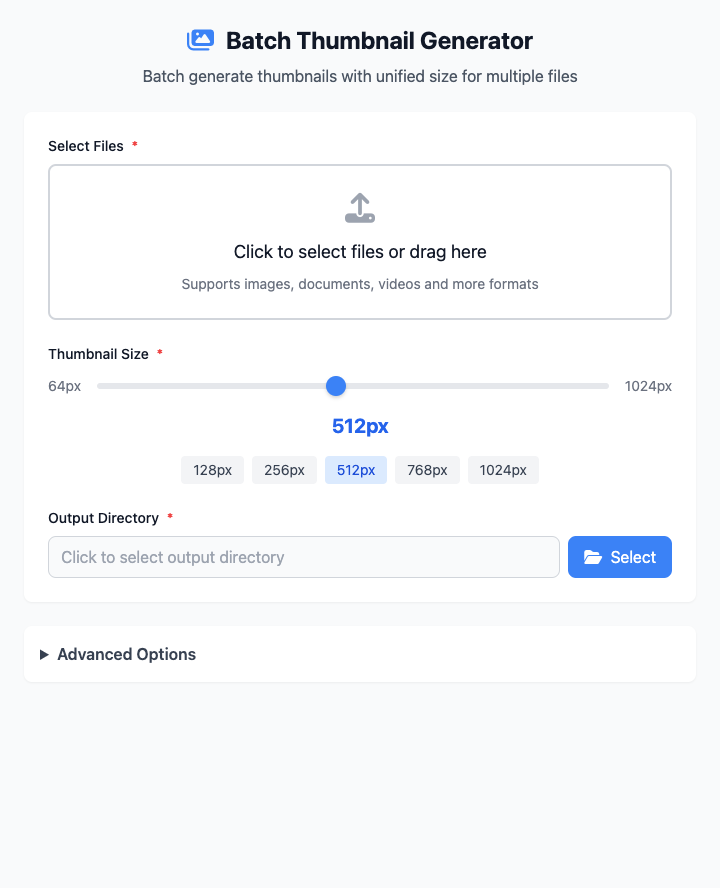
⚡️ Quick Start
- Select Files: Click the file selection area to choose one or more files that need thumbnails generated.
- Set Size: Click a quick size button, for example
256, to set the target size for all thumbnails. - Specify Output Directory: Choose a folder to store all generated thumbnails.
- Click "Execute" Button: After the command completes, you'll get a bunch of thumbnail files.
🤔 When Should I Use It?
- You're building an image gallery or file browser and need to generate uniform-sized thumbnails for each item.
- You want to create small-sized preview versions locally before uploading images.
- You need to batch generate preview images for a bunch of documents or images for quick browsing in lists.
⚙️ Parameter Settings
Select Files: Used to add one or more source files that need thumbnails generated. This is ideal for batch processing.
Thumbnail Size:
- Slider/Numeric Display: Precisely control the output thumbnail size (square side length), ranging from 64px to 1024px.
- Quick Size Buttons: Provides shortcut options for common sizes like
128,256,512,768,1024.
Output Directory: Sets the storage location for all generated
.pngformat thumbnails.
⚠️ Important Notes
- This command depends on the
qlmanagetool built into macOS, so it's only available on macOS. - Thumbnails will be saved in the format
[original-filename].pngin your specified output directory. - After parameter adjustments, the command below will update in real-time. This is a responsive interface with no "Run" button.
Related Tools
In the CmdWise app marketplace, you can also find other file preview and processing tools:
- App Icon Extractor: Extract high-definition icons from macOS applications.
- High-Res File Preview Generator: Generate high-definition preview images for files, just like pressing spacebar in Finder.