WebP Image Converter: Cut Your Image Size in Half
Using Google's official cwebp tool, efficiently convert JPEG, PNG and other format images to the modern WebP format, significantly reducing image file size with virtually no quality loss.
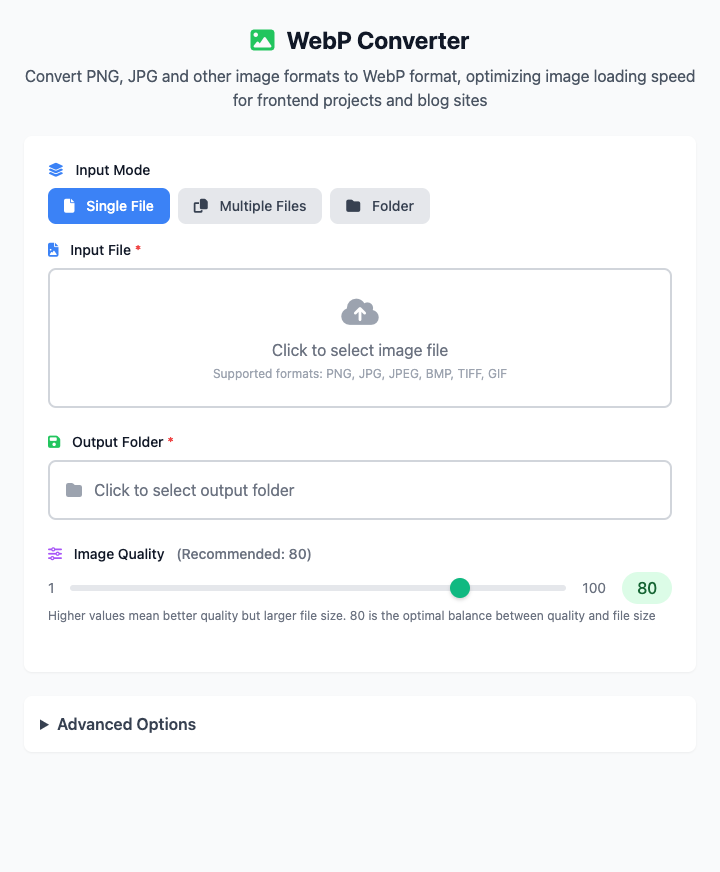
⚡️ Quick Start: Convert an Image
- Select input mode: Single File, Multiple Files or Folder.
- Click the file selection area to choose image files or folder to convert.
- (Optional) Click the output folder area to choose where converted files will be saved.
- Drag the quality slider, usually 80 is sufficient.
- Click the "Execute" button.
- Done! New
.webpimages will be saved in the specified location or next to original files.
🤔 When should I use it?
- You are a web developer or blogger who wants to speed up website image loading.
- You want to minimize image storage space while maintaining image clarity.
- You need to upload images to a platform that only supports WebP format.
- You want to batch convert multiple image files or entire folders of images to WebP format.
⚙️ Main Features & Settings
Input Mode Selection
Supports three input modes to meet different conversion needs:
- Single File Mode: Convert individual image files.
- Multiple File Mode: Select multiple image files at once for batch conversion.
- Folder Mode: Convert all image files in a specified folder, supports recursive processing of subfolders.
Output Folder Settings
You can choose where converted files are saved:
- Not Set: Converted WebP files are saved in the same directory as original files.
- Specify Folder: All converted files are saved to a specified folder.
Quality
Set the compression quality of WebP images, range 1-100. Higher values mean better quality but larger files.
- 80: (Recommended default) This is the optimal balance point. To the human eye, WebP images at this quality are virtually indistinguishable from original images, but file size can typically be reduced by 30% - 70%.
- 90+: If you have extreme quality requirements, you can choose higher values, but file size advantages will diminish.
- < 80: Will cause noticeable quality loss, usually not recommended unless you have extreme file size requirements.
Lossless Compression
In advanced options, you can enable "Lossless Compression".
- When enabled: Will completely ignore the "Quality" setting above and generate WebP files with exactly the same quality as original images. This is equivalent to the
-losslessoption of thecwebpcommand. File size will be larger than lossy compression but usually still smaller than original PNG files. - Use case: When you have absolute quality requirements and don't allow any detail loss (like icons, important screenshots), you can enable this.
Multi-threading
Enable multi-threading to accelerate the conversion process, especially useful for improving efficiency when batch converting many files. Recommended to enable.
Recursive Processing (Folder mode only)
When folder mode is selected, you can choose whether to process image files in subfolders:
- Enable: Convert images in the folder and all its subfolders.
- Disable: Only convert image files in the root directory of the selected folder.
Click to view: Dependency Installation & FAQ
Dependency Installation
Before using this tool, your Mac needs Google's libwebp toolkit installed first. If you have Homebrew installed, just run once in terminal:
brew install webpThis command will install both cwebp (encoder) and dwebp (decoder).
Frequently Asked Questions (FAQ)
Q: What are the benefits of WebP format? A: WebP is a modern image format developed by Google. Compared to traditional JPEG and PNG, it can achieve much smaller file sizes while maintaining the same quality. This means faster website loading speeds and less storage usage.
Q: Do all browsers support WebP? A: Yes, all modern browsers (Chrome, Safari, Firefox, Edge) now fully support WebP format. You can use it with confidence.
Q: Are my original images still there after conversion? A: Yes. This tool doesn't overwrite your original files, but generates a new .webp file in the same directory.
Technical Notes
- Core Tool: Based on Google's official cwebp command-line tool.
- Conversion Effect: According to Google's data, compared to PNG, WebP lossless compression can reduce file size by 26%; compared to JPEG, WebP lossy compression can reduce file size by 25-34% at the same quality.
- System Requirements: macOS 10.12 or higher.
Related Tools
In the CmdWise app marketplace, you can also find other image processing tools:
- Sips Image Converter: Convert between traditional formats like JPEG, PNG
- FFmpeg GIF Maker: Convert video clips to GIF animations