ln File Link Creator: Create "Aliases" for Files
Use the ln command to create an "alias" or "shortcut" for a file or folder, allowing you to access the same file from different locations without copying multiple copies, thus saving disk space.
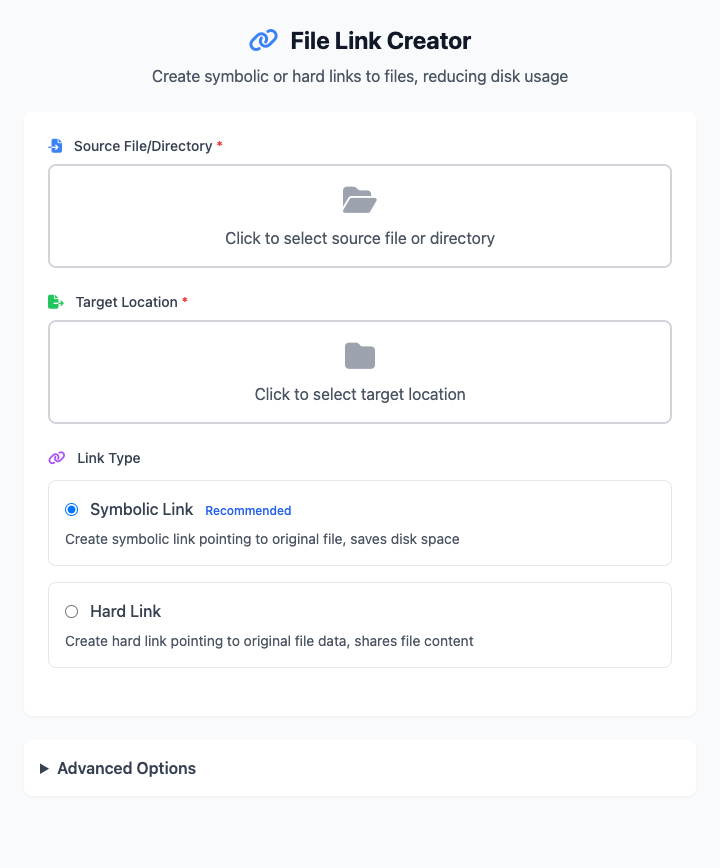
⚡️ Quick Start: Create a Soft Link
- Click to select a source file/directory (the original file you want to create an "alias" for).
- Click to select a target location (where you want the "alias" to appear).
- Ensure "Link Type" is set to Soft Link (Symbolic Link).
- Click the "Execute" button. After the command completes, you'll see the created link file or folder.
🤔 When Should I Use It?
- You want to create a quick launch option for software installed on drive A to also appear on drive B, but don't want to copy it again.
- You have some frequently used folders and want to centralize them for easy management and quick access.
- You're configuring a development environment and need to link a directory to a system path.
⚙️ Parameter Settings
- Source File/Directory: The original file or folder you want to link.
- Target Location: The directory where you want the link ("alias") to be created.
Link Type
This is the core of this tool - you need to understand the difference between the two types of links:
Soft Link (Symbolic Link): (Recommended choice for most situations)
- How it works: Creates an independent small file that contains path information pointing to the source file. It's like a "shortcut" on Windows.
- Features: Can cross different disk partitions; even if the source file is deleted, the link file still exists (but becomes invalid); can create links for folders.
Hard Link
- How it works: Creates an "alias" pointing to the physical storage location (inode) of the source file. It's not an independent file, but a new entry in the file system that directly points to the same data.
- Features: Cannot cross different disk partitions; a file is only truly deleted when all hard links pointing to the same data are deleted; cannot create hard links for folders.
Advanced Options
- Force Overwrite: If a file or link with the same name already exists at the target location, checking this option will force overwrite it.
- Show Detailed Information: When checked, the
lncommand will print detailed information about the link creation process.
Dependencies
This tool completely relies on the ln command built into macOS, no additional dependencies need to be installed, ready to use out of the box.
Related Tools
In the CmdWise app marketplace, you can also find other file management tools:
- File Renamer: Batch rename files
- Large File Finder: Find and locate large files on disk