FFmpeg Audio Extractor: Separating Sound from Video
Using the powerful ffmpeg engine, quickly separate audio tracks from video files and save them as independent audio files. You can choose the lossless, fastest "direct copy" mode, or select "re-encode" to convert to common audio formats.
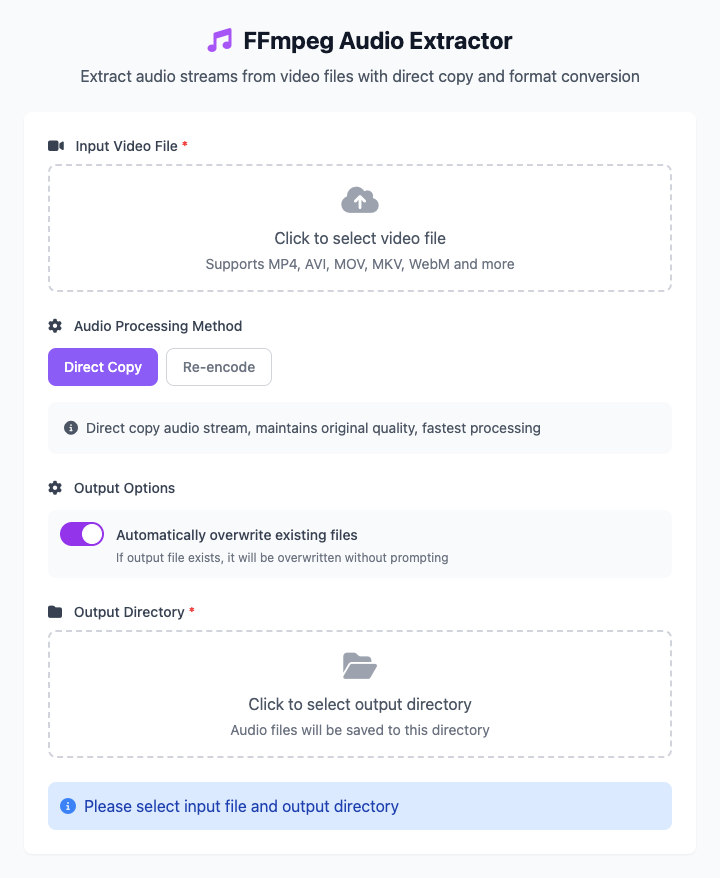
⚡️ Quick Start: Lossless Video Audio Extraction
- Click to select an input video file (such as a
.mp4lecture video). - In "Audio Processing Method", ensure Direct Copy mode is selected.
- Click to select an output directory for saving files.
- Click the "Execute" button. After the command completes, you'll get an audio file containing the original audio track.
🤔 When Should I Use It?
- You want to convert a music video (MV) to MP3 to listen to on your phone.
- You recorded a meeting or lecture video and only want to keep the audio recording.
- You want to extract classic dialogue or background music from a movie clip.
- You need to convert video audio tracks to a specific format (such as
wav) for audio editing.
⚙️ Parameter Description
Audio Processing Method
This is the core of this tool, providing two modes:
Direct Copy
- How it works: Directly "copies" the original audio data stream from the video and packages it as an audio file without any re-compression. Equivalent to
ffmpeg's-acodec copy. - Advantages: Extremely fast and completely lossless, preserving 100% of the original audio quality.
- Recommended scenarios: When you only want the original sound from the video and have no special requirements for output format, this is the best choice.
- How it works: Directly "copies" the original audio data stream from the video and packages it as an audio file without any re-compression. Equivalent to
Re-encode
- How it works: Decodes the original audio from the video, then re-encodes it into a new audio file according to your settings.
- Output Format: You can specify output as
mp3,aac, orwavformat. - Audio Quality: For lossy formats like
mp3andaac, you can adjust the bitrate (64kbps - 320kbps) by dragging the slider to balance file size and audio quality. - Recommended scenarios: When you need a specific audio format (such as converting video audio tracks to universal MP3), or want to compress audio size while extracting.
Output Options
- Auto-overwrite existing files: Enabled by default. If a file with the same name already exists in the output directory,
ffmpegwill directly overwrite it. If you don't want automatic overwriting, you can disable this option.
⚠️ Dependency Installation
Before using this tool, you need to install FFmpeg on your Mac. If you have Homebrew installed, just run this once in the terminal:
bash
brew install ffmpegRelated Tools
In the CmdWise app market, you can also find other video and audio processing tools:
- FFmpeg Video Converter: Convert various video formats to MP4
- FFmpeg GIF Maker: Convert video clips to GIF animations
- Sox Audio Converter: Convert between multiple audio formats