PDF Text Extractor: Easily Copy PDF Text
Using the pdfly extract-text command, extract all selectable plain text content from a PDF document at once and save it to a new .txt file.
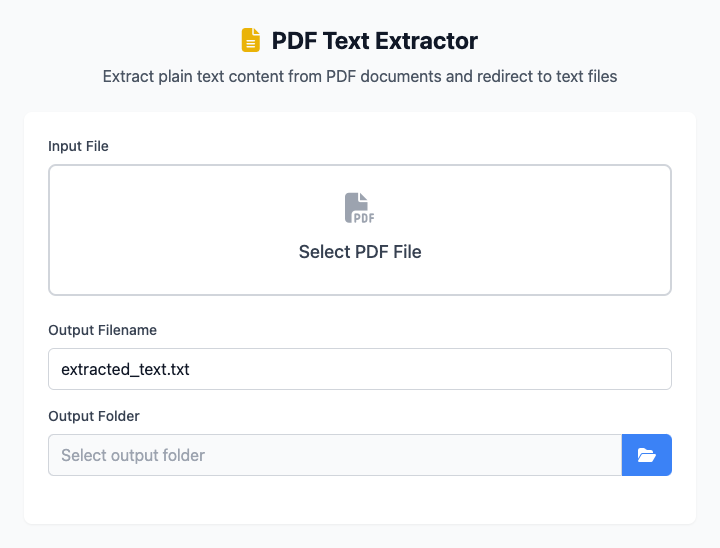
⚡️ Quick Start
- Click to select an input file (the PDF you want to extract text from).
- Specify output filename and output folder.
- Click the "Execute" button. After the command completes, you'll get an extracted text file.
🤔 When Should I Use It?
- You received a PDF report and want to copy large blocks of text from it, but the PDF's copy function is poor or restricted.
- You want to quickly convert a PDF article's content into freely editable plain text.
- You need to integrate content from multiple PDFs, and extracting their text is the first step.
⚙️ Parameter Description
- Input File: The source PDF file you want to extract text from.
- Output Filename: The filename for saving the extracted plain text content, recommended to use
.txtextension. - Output Folder: Choose the save location for the newly generated text file.
⚠️ Important Note: Non-Scanned PDFs
This tool can only extract from "text-based" PDFs and cannot handle "image-based" PDFs.
✔️ Text-based PDFs: These are PDFs where text information is actual text data that can be selected and copied with mouse cursor. This is the type this tool can handle.
❌ Image-based PDFs: These PDFs are essentially one or more images, usually generated by scanners. The text in them is part of the image and cannot be selected. This tool cannot extract text from these PDFs through OCR (Optical Character Recognition). If you input this type of file, the output text file will likely be empty.
Dependency Installation
This tool depends on the pdfly Python package. You need to install Python and pip on your Mac first, then run this once in the terminal:
pip install pdflyRelated Tools
In the CmdWise app market, you can also find other PDF processing tools:
- PDF Page Extractor (pdfly): Extract specific pages from PDFs
- PDF Info Viewer (pdfly): View PDF author, page count and other metadata