FFmpeg Video Subtitle Tool: Easy Hard Subtitle Encoding
Using the ffmpeg engine, "burn" or "encode" an independent subtitle file (such as .srt, .ass) onto the video screen to generate a new video file with hard subtitles.
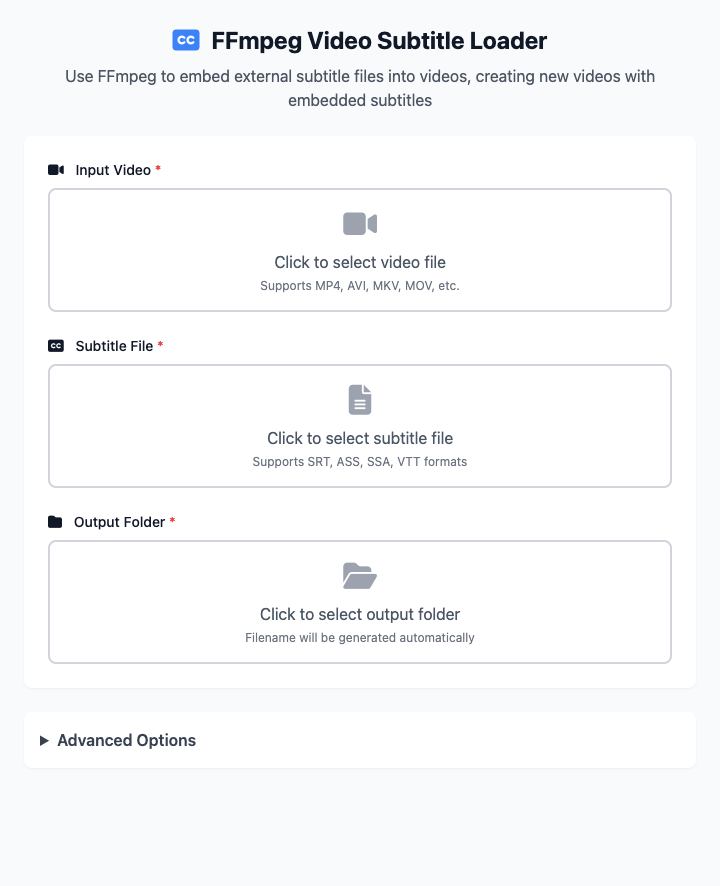
⚡️ Quick Start: Add Subtitles to Video
- Click to select your input video.
- Click to select the subtitle file that matches the video.
- Select an output directory for saving the new video.
- Click the "Execute" button. After the command completes, you'll get a new video file containing subtitles.
🤔 When Should I Use It?
- You want to share a video on social media but hope subtitles can be displayed directly on the screen, ensuring all devices and platforms can see them.
- You created a tutorial video and need to permanently fix explanatory subtitles on the screen.
- You're worried that shared videos might not properly load external subtitles on some players.
⚙️ Parameter Description
- Input Video: The original video file you want to add subtitles to.
- Subtitle File: Independent subtitle file, supporting common formats like
SRT,ASS,SSA,VTT. - Output Directory: Location for storing the generated new video files that already contain subtitles.
Advanced Options
- Subtitle Encoding: This is a very important option. If your subtitle file (especially
.srtor.assfiles obtained from Windows environments) shows garbled characters after encoding, it's likely an encoding issue.- UTF-8: International standard, preferred choice.
- GBK: If your Simplified Chinese subtitles appear as garbled characters, try selecting this option.
- BIG5: If your Traditional Chinese subtitles appear as garbled characters, try selecting this option.
- Overwrite Existing Files: When enabled, if files with the same name exist in the output directory, they will be directly overwritten.
⚠️ Important: Hard Subtitles vs. Soft Subtitles
This tool generates "hard subtitles". Please understand the difference between them and "soft subtitles":
✔️ Hard Subtitles: Subtitles are permanently "drawn" onto the video screen as part of the image. The advantage is best compatibility - any player can display them; the disadvantage is they cannot be turned off or changed. This is the effect this tool generates.
❌ Soft Subtitles: Subtitles are an independent track packaged with the video (but not merged with the screen). Users can freely turn them on or off in the player. If you want to extract soft subtitles from videos, please use the FFmpeg Subtitle Extractor.
Dependency Installation
Before using this tool, you need to install FFmpeg on your Mac. If you have Homebrew installed, just run this once in the terminal:
brew install ffmpegRelated Tools
In the CmdWise app market, you can also find other video processing tools:
- FFmpeg Subtitle Extractor: Extract embedded soft subtitles from videos
- FFmpeg Video Clipper: Precisely trim video segments