Image to PDF Converter: Merge Multiple Images Into One PDF
Quickly merge a bunch of images (such as JPG, PNG format photos, screenshots, scans) and convert them into a single, ordered PDF document. All operations are completed on your computer, no uploading required, protecting privacy.
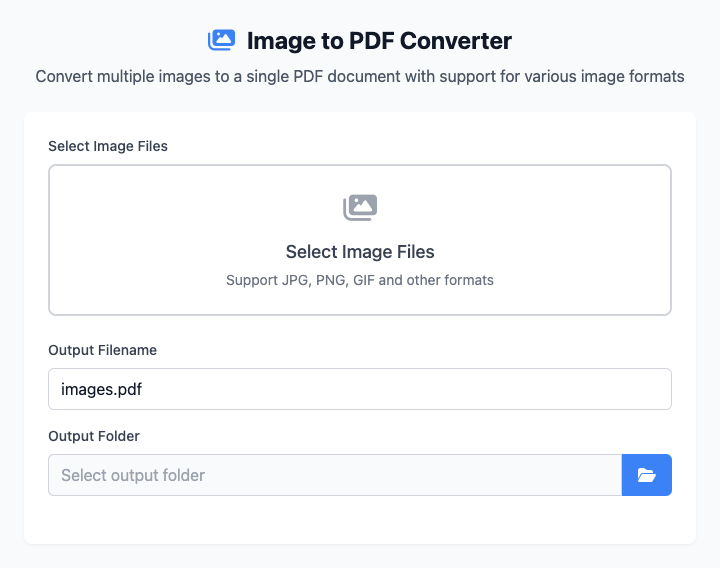
⚡️ Quick Start: Convert Several Images
- Click the file selection area and select the images you want to convert. Note: The page order in the PDF will match the order you select the files.
- Specify an output folder and filename for the new PDF file.
- Click the "Execute" button. After the command completes, you'll get a PDF file containing all images.
🤔 When Should I Use It?
- You took multiple document photos with your phone and need to convert them into a single PDF file to send to others.
- You have a bunch of course material screenshots that you want to merge in order into a PDF for easy review.
- You need to submit scanned application materials that are several separate images.
- You want to create a simple photo album or portfolio PDF.
⚙️ Options and Settings
File List and Order
This displays all image files you've added.
- Important Note: The current version does not support drag-and-drop sorting. The final page order in the PDF will strictly follow the order you select the files. If you need a specific order, please hold the
Commandkey in the file selector and click files in sequence. - Supported Formats: Supports most common image formats such as
.jpeg,.jpg,.png,.gif, etc.
Click to view: Dependency Installation and Common Issues
Dependency Installation
This tool depends on the pdfly Python package. You need to install Python and pip on your Mac first, then run this once in the terminal:
pip install pdflyIf you haven't installed Python yet, we recommend installing it via Homebrew: brew install python.
Common Issues (FAQ)
Q: Why is the image order in the generated PDF random? A: The PDF page order depends on the order you select the files. Please hold the Command key in the file selector and click files in sequence to ensure correct order. The first file in the list will be page 1 of the PDF.
Q: What if the converted PDF file is very large? A: This is usually because your original images have high resolution. You can first use other tools (like SIPS Image Converter) to appropriately reduce image resolution and quality before conversion. Or, after generating the PDF, use our PDF Compressor (pdfly) to reduce its size.
Q: Can I convert GIF or other format images? A: Currently mainly supports JPG and PNG, the two most common static image formats.
Technical Notes
- Core Tool: Based on the powerful open-source Python library pdfly.
- Privacy Security: All image to PDF conversions are performed locally on your computer, and none of your files are uploaded to network servers.
- System Requirements: macOS 10.12 or higher, with Python and
pdflyinstalled.
Related Tools
In the CmdWise app market, you can also find other PDF and image processing tools:
- PDF Merger (pdfly): Merge multiple independent PDF files into one
- PDF Compressor (pdfly): Reduce generated PDF file size
- SIPS Image Converter: Unify image format or size before conversion