ImageMagick Sprite Sheet Maker
Using the powerful ImageMagick montage command, intelligently merge all small images (like icons) in a folder into a large "sprite sheet", which is a classic performance optimization technique in web and game development.
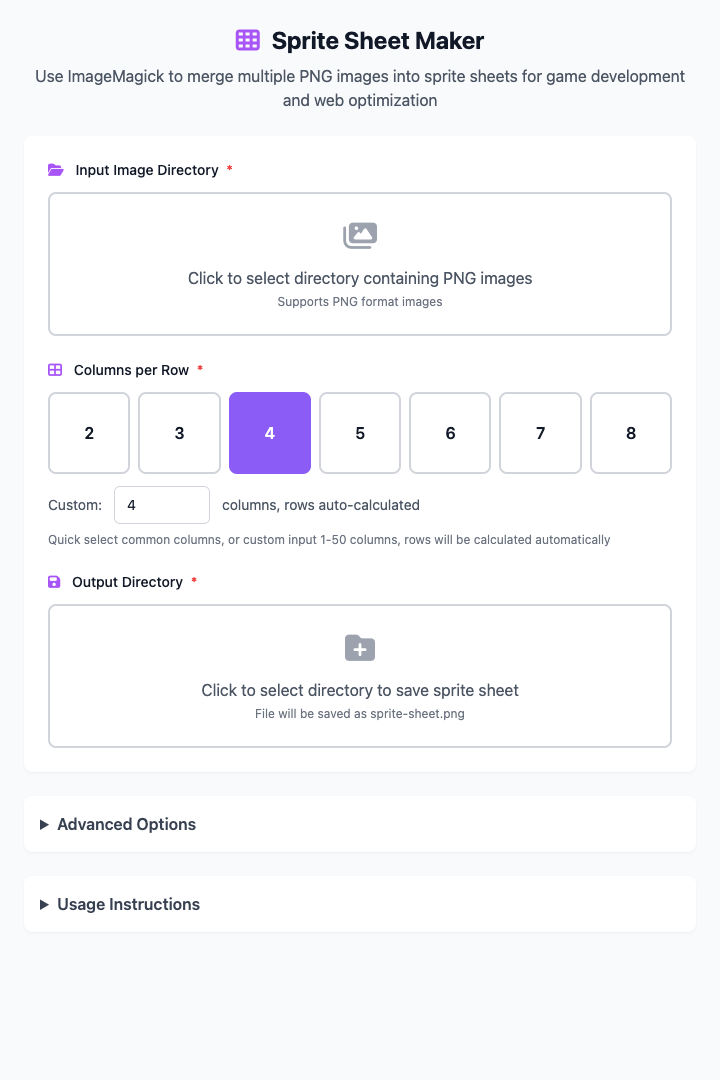
⚡️ Quick Start: Merge a Set of Icons
- Put all the
.pngsmall images you want to merge in the same folder. - Click to select that input image folder.
- Set a reasonable columns per row, for example
8. - Select an output folder to save the generated sprite sheet.
- Done! A merge command has been generated for you below. Copy it to the terminal and execute it to find the
sprite-sheet.pngfile in the output folder.
🤔 When Should I Use It?
- You're a front-end developer who wants to merge all small icons used on a website into one image to reduce HTTP requests and speed up page loading.
- You're a game developer who needs to merge character animation frames or game UI elements into a single texture atlas.
- You want to create an image wall or collage containing many small images.
⚙️ Parameter Description
Input Image Folder: The folder containing all source images to be merged (recommended
.pngformat). Themontagecommand will read these images in filename order.Columns per Row: This is the layout core of the sprite sheet. It determines how many small images are arranged per row in the final generated large image. Row count will be automatically calculated based on total image count and column count. We provide shortcut buttons for common column counts.
Output Folder: Location for saving the final generated
sprite-sheet.pngfile.
Advanced Options
- Image Spacing: Set horizontal and vertical spacing between each small image (in pixels) to prevent them from being too close together. For example,
+5+10means horizontal spacing of 5px and vertical spacing of 10px.
⚠️ Dependency Installation
Before using this tool, you need to install ImageMagick on your Mac. If you have Homebrew installed, just run this once in the terminal:
brew install imagemagickRelated Tools
In the CmdWise app market, you can also find other image processing tools:
- SIPS Image Converter: Convert between JPEG, PNG and other formats
- WebP Image Converter: Convert images to the modern WebP format