FFmpeg GIF Maker: One-Click Video to GIF Conversion
Quickly convert complete video files to high-quality GIF animations. No need to learn complex FFmpeg command lines—easily adjust resolution and frame rate to optimize GIF file size.
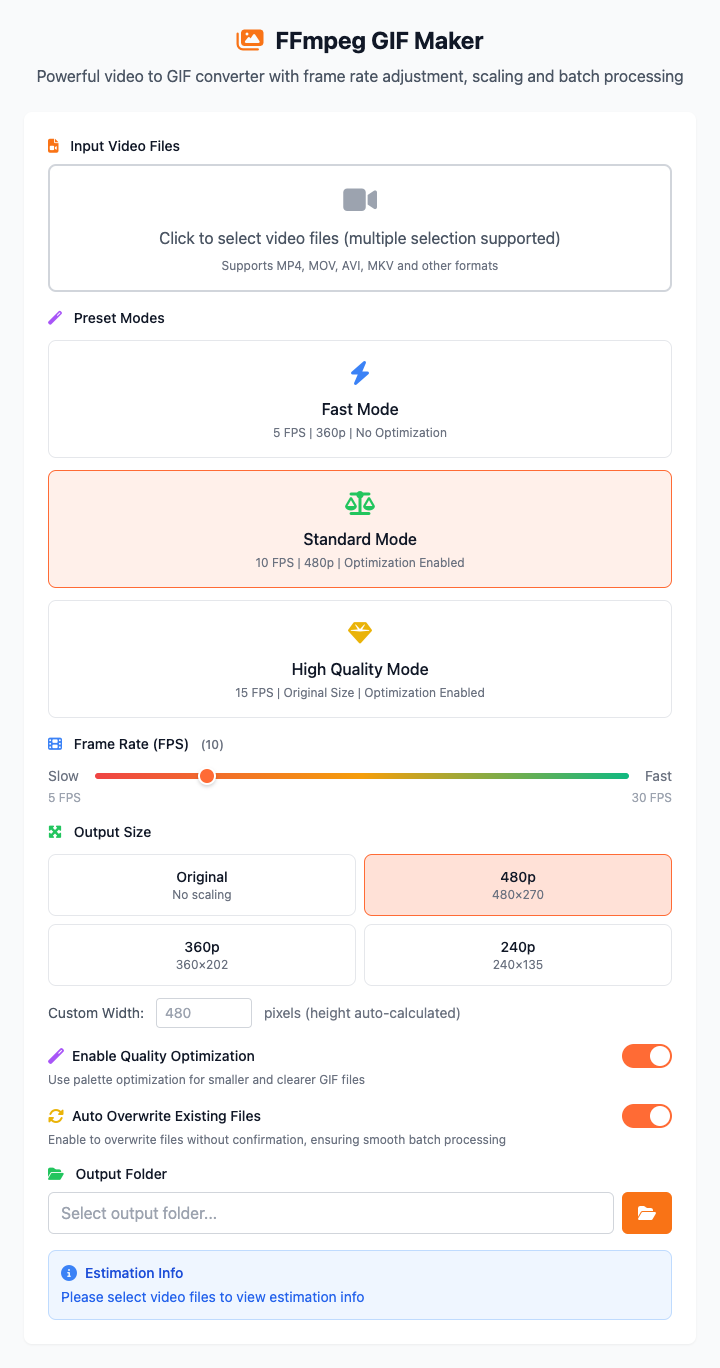
⚡️ Quick Start: Create a GIF
- Click the file selection area and choose one or more video files (supports batch processing).
- Select a preset mode, such as "Standard Mode".
- (Optional) Click to select an output folder to specify where GIF files will be saved.
- Click the "Execute" button.
- Done! The created GIF files will be saved in the specified folder.
🤔 When Should I Use It?
- Want to completely convert a short video into an emoji/meme to share.
- Want to convert a product operation screen recording into a GIF for tutorials or documentation.
- Want to create a dynamic preview for an interesting short video.
⚙️ Options and Settings
Preset Modes
For convenience, we provide three preset modes that can set frame rate, resolution, and optimization options with one click:
- Quick Mode: Suitable for scenarios with low quality requirements, fastest generation speed.
- Standard Mode: (Recommended) Balances quality, file size, and conversion speed, suitable for most situations.
- High Quality Mode: Pursues the best visual effects, but files will be larger and conversion slower.
Batch Processing
Supports selecting multiple video files at once for batch conversion, greatly improving work efficiency:
- Multi-file Selection: You can select multiple video files simultaneously in the file selector.
- Unified Settings: All files will use the same quality preset, resolution, and frame rate settings.
- Batch Output: Converted GIF files will be saved uniformly to the specified output folder.
Resolution (Size)
You can choose preset resolutions or customize width:
- Preset Resolutions: Provides common sizes like 480p, 360p, 240p.
- Keep Original: If you need high-quality GIFs for web pages or documents, you can choose this option.
- Custom Width: Specify exact pixel width in the input box; height will be calculated automatically according to the original video aspect ratio.
Recommended Settings:
- 360p / 480p: This resolution range is most suitable for sharing as emojis in chat software—clear enough without files being too large.
Frame Rate (FPS)
Frame rate determines GIF smoothness. Higher frame rates are smoother but result in larger files.
- 10 FPS: (Recommended) For most emojis and demonstrations, 10 frames is smooth enough while effectively controlling file size.
- 15 FPS: If you want the animation to be a bit smoother, you can choose this option.
- Higher Frame Rates: Will make GIF files extremely large, usually not recommended.
Quality Optimization
When this option is enabled, the tool will use FFmpeg's palettegen and paletteuse filters to generate an optimized palette. This can minimize file size while maximally preserving image quality, making GIF colors more natural. Strongly recommended to keep enabled.
Output Settings
- Output Folder: You can specify where GIF files will be saved; if not set, they'll be saved to the default location.
- Auto-overwrite Files: When enabled, files with the same name in the output folder will be automatically overwritten, ensuring batch processing won't be interrupted by file conflicts.
Click to view: Advanced Tips and Common Issues
Advanced Tips
- Creating High-Quality GIFs: If you're not sensitive to file size but pursue the highest quality, you can choose "Keep Original" resolution and higher frame rates (like 15-20 FPS).
- Creating Small File GIFs: To make GIF files as small as possible, set a smaller width (like 320px) and lower frame rate (8-10 FPS).
Dependency Installation
Before using this tool, you need to install FFmpeg on your Mac. If you have Homebrew installed, just run this once in the terminal:
brew install ffmpegCommon Issues (FAQ)
Q: Why are my GIF files so large? A: GIF file size is mainly affected by video duration, resolution, and frame rate. Please try:
- Use shorter source videos.
- Lower resolution (choose smaller size presets).
- Lower frame rate (e.g., from 15 to 10).
Q: Why do the colors in my generated GIF look strange? A: GIF format only supports 256 colors, so there will be quality loss when converting from full-color videos—this is normal. This tool enables quality optimization algorithms by default to improve palette quality, which is sufficient for most scenarios.
Q: Can I convert videos longer than one minute? A: Technically yes, but highly not recommended. A long-duration GIF file would be abnormally huge (possibly hundreds of MB), making loading and sharing extremely difficult. GIFs are best suited for displaying short videos of a few seconds.
Technical Notes
- Core Tool: Based on the powerful open-source video processing library FFmpeg.
- Algorithm: By default uses FFmpeg's
palettegenandpaletteusefilters to generate an optimized 256-color palette, minimizing file size while maximally preserving image quality. - System Requirements: macOS 12.0 or higher.
Related Tools
In the CmdWise app market, you can also find other video processing tools:
- FFmpeg Video Converter: Convert various video formats to MP4
- FFmpeg Audio Extractor: Extract audio files from videos
- SIPS Image Converter: Process static images