FFmpeg Video Compressor: Easy Video "Diet"
Using the ffmpeg engine, efficiently compress one or more video files to significantly reduce file size while maintaining image quality as much as possible, making sharing and storage more convenient.
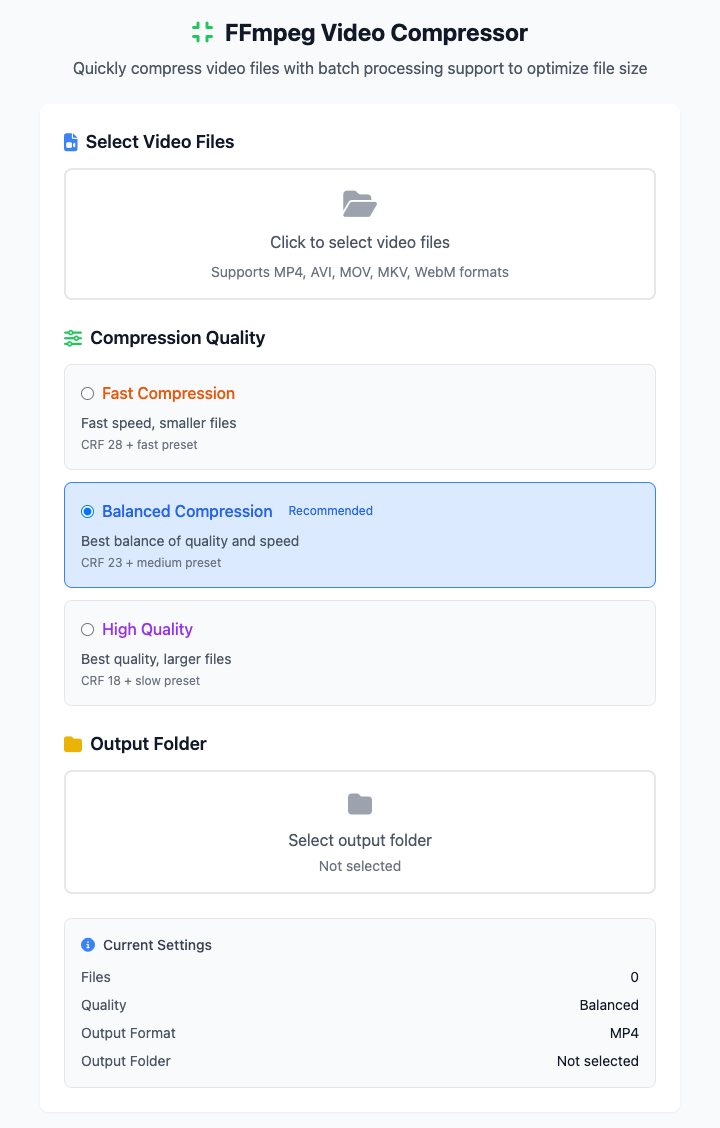
⚡️ Quick Start: Compress a Video
- Click Select Video Files, you can select multiple at once.
- In the "Compression Quality" area, click Balanced Compression mode.
- Select an output folder for saving the new videos.
- Click the "Execute" button. After the command completes, you'll get a compressed video file.
🤔 When Should I Use It?
- Video files recorded on your phone are too large and you want to send them to others or upload to social networks.
- You want to archive a batch of video materials and hope to save hard drive space without severely losing image quality.
- You need to embed videos in web pages or apps and must strictly control file size to optimize loading speed.
⚙️ Compression Quality Description
We provide three carefully tuned preset modes to meet different scenario needs. These presets mainly work by adjusting CRF (Constant Rate Factor) values and encoding speed. CRF is a key parameter controlling video quality, the lower the value, the better the image quality, but the larger the file.
Fast Compression (CRF 28)
- Features: Highest compression ratio, smallest file size, fastest processing speed.
- Use Cases: When you have extreme requirements for file size and can accept some image quality loss. For example, quickly generating small videos for sharing on WeChat and other platforms.
Balanced Compression (CRF 23)
- Features: (Recommended) This is the best balance point between image quality, file size, and processing speed. For most human eyes, the compressed image quality is almost indistinguishable from the original video.
- Use Cases: Most daily use scenarios, such as compressing phone recordings, web videos, etc.
High Quality (CRF 18)
- Features: Best image quality, almost lossless, but largest file size and slowest processing speed.
- Use Cases: When you want to compress while maximally preserving video details. For example, backing up important video materials or for professional presentations.
⚠️ Dependency Installation
Before using this tool, you need to install FFmpeg on your Mac. If you have Homebrew installed, just run this once in the terminal:
brew install ffmpegRelated Tools
In the CmdWise app market, you can also find other video processing tools:
- FFmpeg Video Converter: Convert various video formats to MP4
- FFmpeg Video Clipper: Precisely trim video segments
- FFmpeg GIF Maker: Convert video segments to GIF animations