AI Command App Assistant
Memorize fewer parameters, open fewer terminals—AI Command App Assistant compresses tedious command-line work into three steps. You just need to describe your needs or paste existing commands, and CmdWise will output a clickable GUI.
1. Use Cases
| Type | When to Use | Example |
|---|---|---|
| Natural Language Requirements | You know "what you want to do" but forgot the specific command | "Batch convert PNG to JPG" |
| Existing Commands | You have long commands on hand and want to run them with one click later | find . -type f -name "*.log" |
Not sure? Prioritize natural language input—the assistant will provide candidate commands.
2. Operation Steps
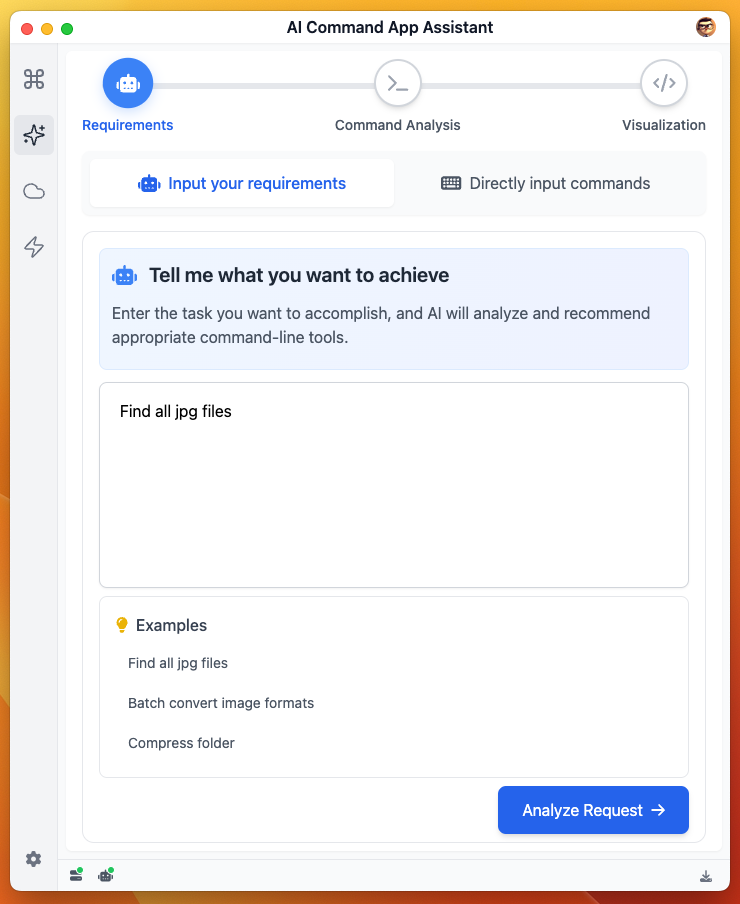
Step 1 – Input
- Switch between Requirements / Commands in the top tabs
- Requirements Mode: Enter a Chinese or English phrase, like "compress folder to zip" Command Mode: Directly paste complete Shell, like
ffmpeg -i input.mov output.gif - For quick verification, click 💡 Examples
- Press Analyze to continue
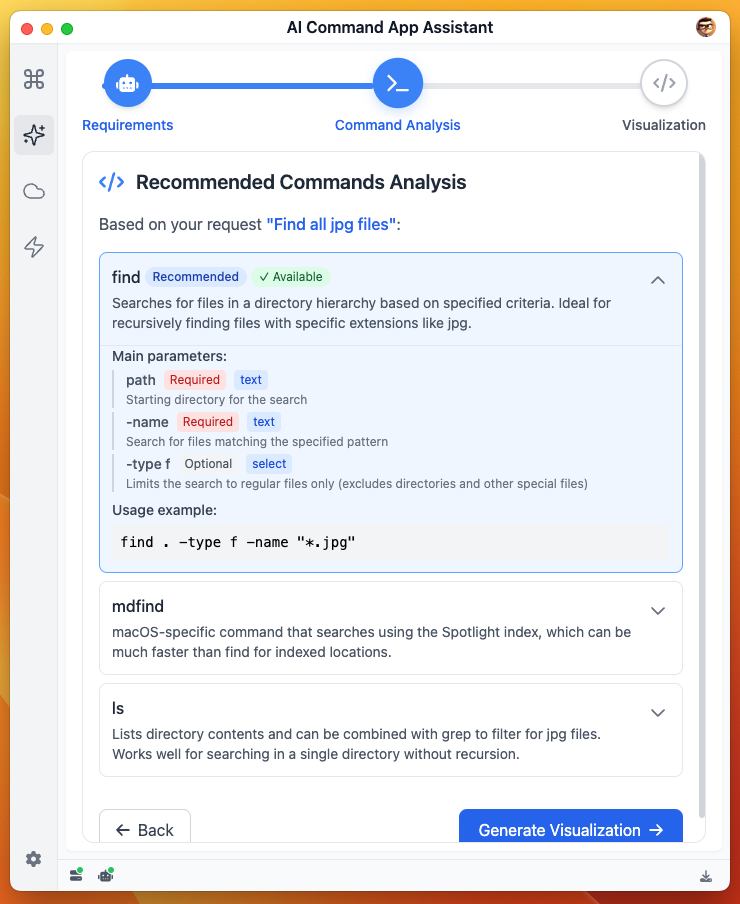
Step 2 – Analysis
- CmdWise breaks down parameters, assesses risks, and displays installation status
- 🟢 Installed
- ⚪ Needs installation
- 🔴 High risk, requires double confirmation
Click any command to view details, click again to collapse. After confirmation, click Generate Visualization to enter preview.
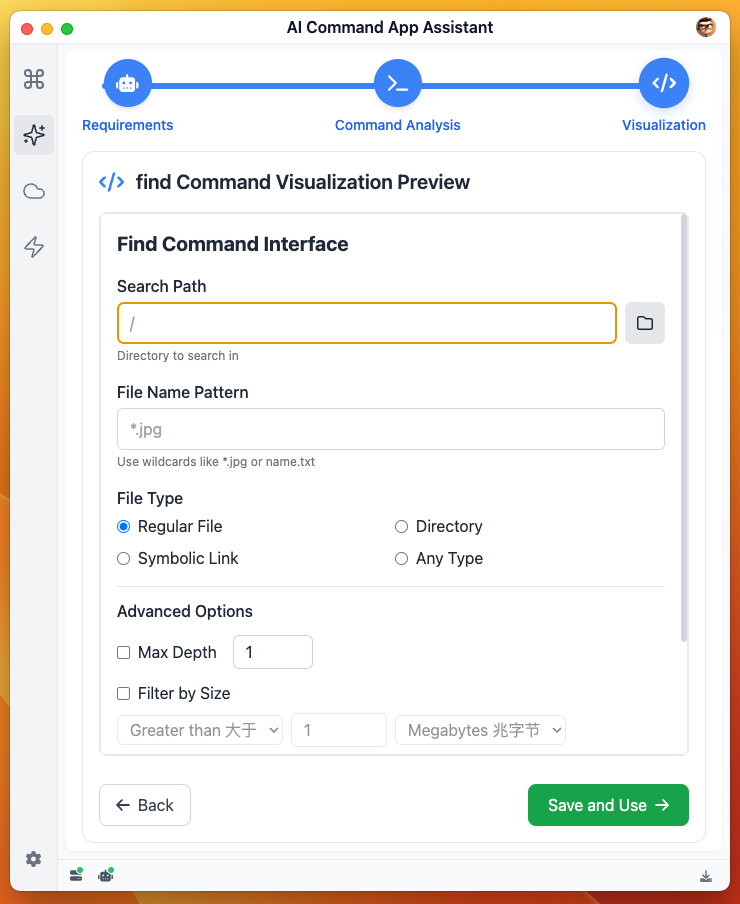
Step 3 – Visualization Preview
The assistant calls AI large models to generate interactive GUI:
- Click Save and Use to save for future one-click reuse (enter Command App Center to view created command apps)
3. Common Issues
Cannot perform command analysis
- Error "Unauthorized" prompt - command analysis is based on AI large models, need to configure in settings first. See: AI Configuration
Slow visualization interface generation
- Visualization interface generation speed is related to network environment. If slow, please be patient
- If no response for a long time, check network connection and try again
Description too complex, generated results don't meet expectations
- Try using simpler descriptions, preferably one task at a time
- Make descriptions clearer and more specific
4. Practical Tips
- Use phrases for more precise descriptions, like "merge pdf"
- When commands contain dangerous operations like
rm, the assistant will automatically add red warnings and require confirmation