Your First Visual Command: Sips Image Format Converter
Feature Overview
Sips (Scriptable Image Processing System) is a powerful image processing tool built into macOS. With CmdWise's visual interface, you can easily batch convert iPhone HEIC photos or other image formats to JPEG, PNG, and other common formats without memorizing complex command-line parameters.
Use Cases:
- Convert iPhone HEIC photos to JPEG format for better compatibility
- Batch adjust image quality to reduce file sizes
- Convert between different image formats (PNG, TIFF, BMP, etc.)
- Simultaneously resize images and change formats
Video Demonstration
Step-by-Step Guide
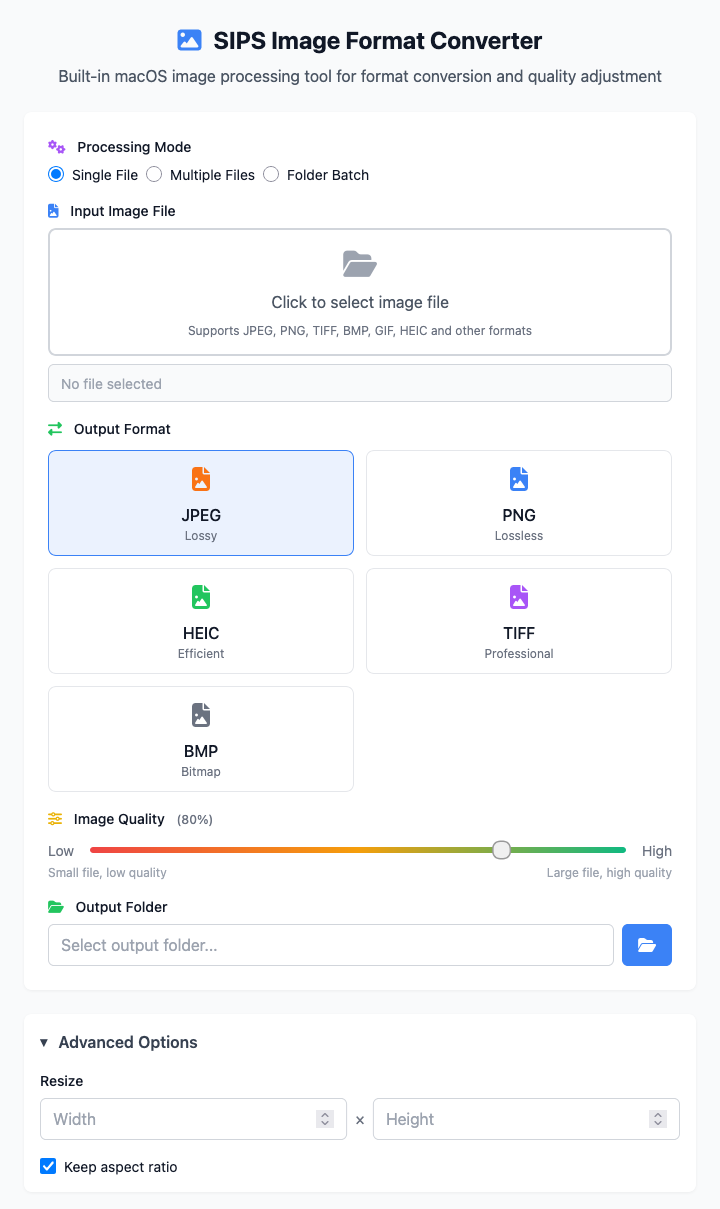
1. Select Processing Mode and Images
Choose Processing Mode:
- Single File: Process one image at a time
- Multiple Files: Select multiple images for batch processing (as shown in video)
- Folder Batch: Process all images in a folder
Select Image Files:
- Choose the appropriate processing mode based on your needs (video shows "Multiple Files" mode)
- Click the file selection area labeled "Click to select multiple image files"
- In the file picker that appears:
- Hold Cmd key to select multiple files
- Supports HEIC, JPEG, PNG, TIFF, BMP, and other formats
- Video demonstration shows 2 HEIC iPhone photos + 1 JPG image from Pexels
2. Configure Output Format and Parameters
Select Output Format:
- Click format cards to choose the target format (video selects JPEG)
- Format characteristics:
- JPEG: Lossy compression, small files, ideal for photo sharing
- PNG: Lossless compression, supports transparency
- HEIC: Apple's efficient format with high compression
- TIFF: Professional format suitable for printing
Adjust Quality Parameters (JPEG format):
- After selecting JPEG, a quality adjustment slider appears
- Default value: 80% (setting used in video)
- Range: 10%-100%
- Higher quality means larger files but better image quality
3. Set Output Path
Choose Output Directory:
- Click the folder icon next to "Output Folder"
- Select where to save the converted images in the dialog
- You can create new folders to organize converted files
Automatic Naming Rules:
- Converted files maintain their original filename
- File extension automatically changes to target format (e.g., .jpeg)
- Example:
IMG_1234.HEIC→IMG_1234.jpeg
4. Execute Conversion with One Click
Command Generation and Validation:
- Once configured, CmdWise automatically generates the corresponding sips command
- Click "Risk Assessment" for AI analysis of command safety
- Low Risk: Safe operation
- Image format conversion is typically assessed as safe
Execute Conversion:
- After confirming the command is correct, click "Execute"
- System processes each selected image file sequentially
- Monitor real-time conversion progress and results in the execution panel
Verify Successful Results
Check Output Files:
- After conversion completes, open the configured output folder
- Confirm all images were successfully converted:
- 2 HEIC photos → 2 JPEG files
- 1 JPG image → 1 optimized JPEG file
File Size Comparison:
- HEIC to JPEG: Files usually slightly increase in size but gain significant compatibility
- 80% quality JPEG: Effectively compresses file size while maintaining good quality
- Re-compressed original JPG: File size may decrease 20-50%
Quality Check:
- Open converted files in an image viewer
- Compare with originals to ensure quality meets expectations
- 80% quality typically provides good balance between file size and image quality
Common Errors and Troubleshooting
Unsupported File Format
Problem: "Unsupported file format" error Solution:
- Confirm input files are valid image formats
- Check if files are corrupted
- Some RAW formats may not be supported by sips
Output Path Permission Issues
Problem: Cannot write to output folder Solution:
- Choose a folder with write permissions
- Avoid system-protected directories
- Ensure target folder exists
Filename Conflicts
Problem: Files with same name already exist in output folder Solution:
- sips will overwrite files with same names
- Recommend using a dedicated output folder
- Or add timestamps to output path
Conversion Failures
Problem: Some files fail to convert Solution:
- Check if original files are intact
- Ensure sufficient disk space
- Large files may require more processing time
💡 Practical Tips
- Batch Processing: Selecting multiple files greatly improves efficiency
- Format Selection: JPEG works best for photos, PNG for screenshots and icons
- Quality Settings: 80% is the optimal balance for photo sharing
- File Management: Create dedicated output folders for different purposes