Command App Market
Overview
The Command App Market is one of CmdWise's core features, providing users with a centralized platform to browse, search, and install various pre-built command-line tools. Through the visual interface, even beginners can easily manage complex command-line tools.
Core Interactions
| Action | Result | Notes |
|---|---|---|
| Enter app market | Click cloud icon in sidebar | Auto-loads compatible apps |
| Browse app cards | View icons, descriptions, download counts | Responsive grid, adaptive columns |
| Search keywords | Real-time app filtering | Supports names, commands, functions |
| Page navigation | Browse more apps | 20 apps per page |
| View details | Click app card | Jump to detail page |
| Download/Update | Click "Download App" button | Download and add to local library |
| Missing command guidance | Auto-detect and prompt Homebrew | One-click install or search packages |
Browse & Search
Quick Access
- Open CmdWise, click the icon in the sidebar to enter the "Command App Market". The system will automatically load the app list matching your current system.
App Cards & Grid Layout
| Section | Details |
|---|---|
| App Card Info | " App icon and name " Feature description " Supported operating systems " Base command name " Download count statistics |
| Grid Layout | " Adaptive column count, changes with screen size " Responsive design, adapts to different resolutions |
Search
| Search Target | Example Keywords | Description |
|---|---|---|
| App Name | ffmpeg-gui | Enter complete or partial name |
| Command Keywords | pdf, ffmpeg | Search by underlying command |
| Feature Description | image format, audio extract | Search by feature keywords |
| Clear Search | (empty) | Delete input to return all apps |
After entering keywords, click = or press Enter to trigger search immediately.
Search States
| State | UI Display | Description |
|---|---|---|
| Loading | Spinning icon | Search in progress |
| No Results | "No matching results" prompt | No related apps found |
| Error | Error prompt + retry button | Network exception or service unavailable |
Paginated Browsing
- When app count exceeds 20, the system automatically paginates; use bottom pagination controls to quickly jump to any page.
One-Click Install/Update
View App Details
- Click App Card: Click anywhere on the app card area
- Enter Preview Page: System jumps to app detail page
- Detail Page Content:
- Detailed app introduction
- Command availability detection
- Visual operation interface
Install App
Installation Process
- Click "Download App" button on app detail page
- System automatically:
- Downloads app files
- Adds to local app library
Homebrew Installation Guidance
What is Homebrew
Homebrew is the most popular package manager on macOS, with many command-line tools installed and managed through it. CmdWise integrates intelligent Homebrew support, making the installation process simpler.
Auto-Prompt When Brew Not Installed
Auto-Detection
| Detection Step | Description |
|---|---|
| Smart Detection | Automatically check if Homebrew is installed |
| Path Scanning | Search common installation paths |
| Version Verification | Confirm Homebrew version and availability |
Installation Guidance Interface
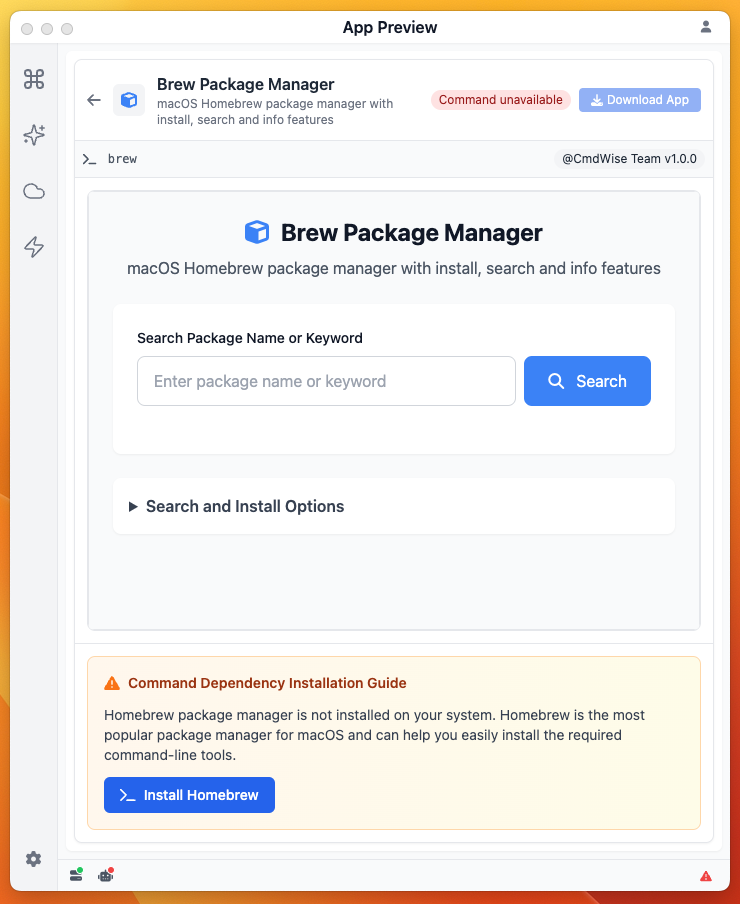
If Homebrew is not detected, the system displays a friendly guidance interface:
- Click "One-Click Install Homebrew" to open terminal and execute script to install brew.
Brew Search & Install Commands
Smart Package Search
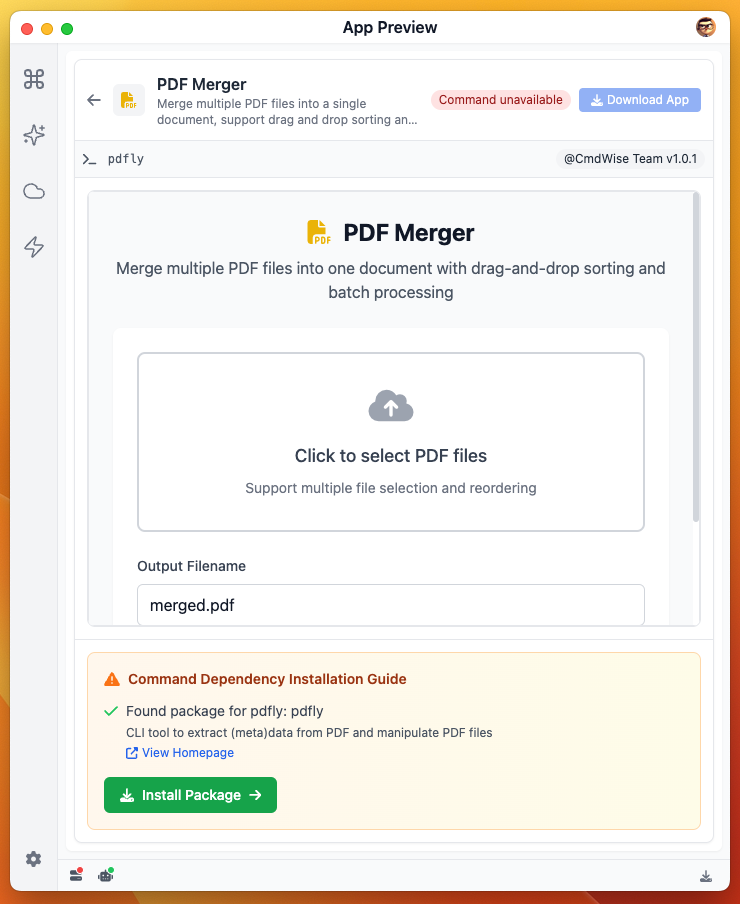
When a missing command is detected, the system will:
- Exact Match: First search for packages with exact command name match
- Fuzzy Search: If exact match fails, perform fuzzy search
Error Handling
Common Issues and Solutions:
- Network Connection Issues
- Display network error prompt
- Provide retry button
- Suggest checking network connection
Through these features, CmdWise Command App Market provides users with a safe, convenient, and intelligent command-line tool management platform, making complex command-line operations simple and easy to use.