Command App Center
Pain Point: CLI parameters are hard to remember, slow to type, and error-prone.
Solution: Package common CLI scenarios into "mini-apps" that you can click and run in a single interface.
1. Quick Overview
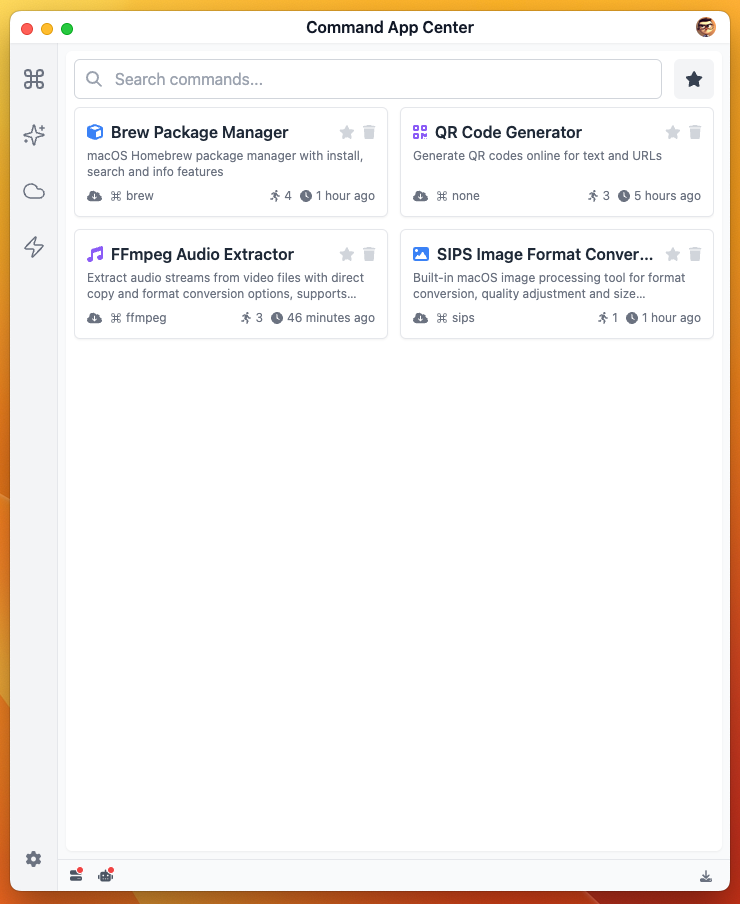
- Search Bar: Instantly filter by app name or tags
- Seat Status Bar: Shows remaining quota for current account
- App Cards: Support pinning, deletion, and usage statistics
- Side Information Panel: Displays AppInfo, Command, History, and Feedback sub-panels
2. Core Interactions
| Action | Result | Notes |
|---|---|---|
| Click app card | Opens visual interface and records one usage | Operation count shows in card badge |
| Click ⭐ | Pin or unpin app | Convenient for frequently used apps |
| Click 🗑️ | Delete local app | System will ask for confirmation |
2.1 Command Panel
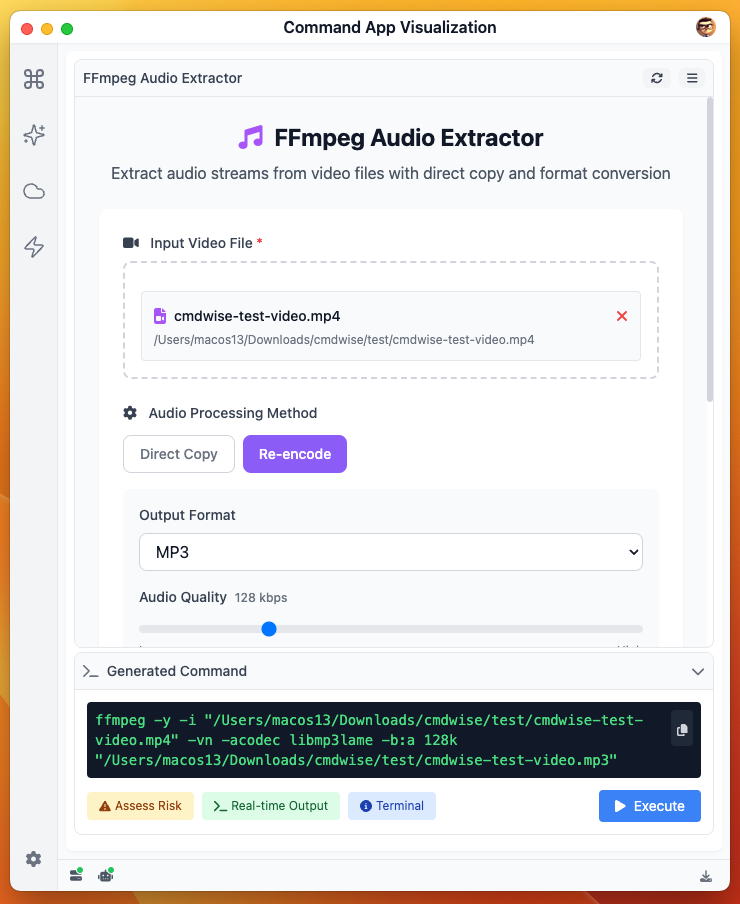
| Element | Description |
|---|---|
| Generated command area | Green monospace display, one-click copy |
| Risk assessment button | AI analysis, outputs levels like safe-critical |
| Execute button | Standard/streaming modes; real-time result rendering |
| Detail tabs | Switch between stdout/stderr/risk reports |
| Collapse header | Bidirectional arrow minimizes, saves vertical space |
AI Risk Assessment System
The Command App Center includes a built-in AI risk assessment system that automatically analyzes potential risks of each command, ensuring user safety. This system balances security and performance, suitable for all visual command execution scenarios.
1. Working Mechanism
- Default Behavior: All commands go through AI risk assessment for maximum security
- Performance Optimization: Enable "Skip AI assessment for security tools" in settings to improve execution speed for common commands
2. Risk Level Descriptions
| Level | Description | Examples |
|---|---|---|
| SAFE | Completely safe | ls, cat, date |
| LOW | Minimal risk | sips -s format jpeg |
| MEDIUM | Requires caution | chmod 644 |
| HIGH | Significant risk | rm -rf directory |
| CRITICAL | Extremely high risk, strong warning | rm -rf / |
- Assessment results are displayed visually with colors and labels above the command area
3. Security Tool Whitelist
The system includes 40+ common security tools, defaulted as low risk, can skip AI assessment for improved performance:
- macOS Built-in:
sips,textutil,screencapture,pbcopy - File Viewing:
cat,head,tail,less,grep - System Info:
ls,date,whoami,uname - Development Tools:
git,npm,node,python - Other commonly used commands continuously being added
4. Performance Optimization Options
- Disable Skip (default): All commands go through AI assessment, safest but slightly slower
- Enable Skip: Whitelist tools pass directly, dangerous commands still force AI assessment, balancing security and efficiency
5. Forced AI Assessment Scenarios
Even with skip option enabled, the following situations still trigger forced AI risk analysis:
- Commands containing pipes, redirects and other complex operations (e.g.,
sips ... | bash) - Involving system sensitive paths (e.g.,
cat /etc/passwd) - Command combinations (e.g.,
sips ... && rm -rf) - When unknown or high-risk parameters are detected
6. User Prompts and Interactions
- When risk level is HIGH or CRITICAL, system will show confirmation dialog to prevent accidental operations
- Assessment details can be viewed in "Risk Report" tab of command panel, including AI analysis reasoning and recommendations
Tip: AI risk assessment is only auxiliary, final operation should be judged by users themselves. If you have questions, you can submit commands for manual review through the feedback panel.
3. Side Panel Details
3.1 App Info Panel
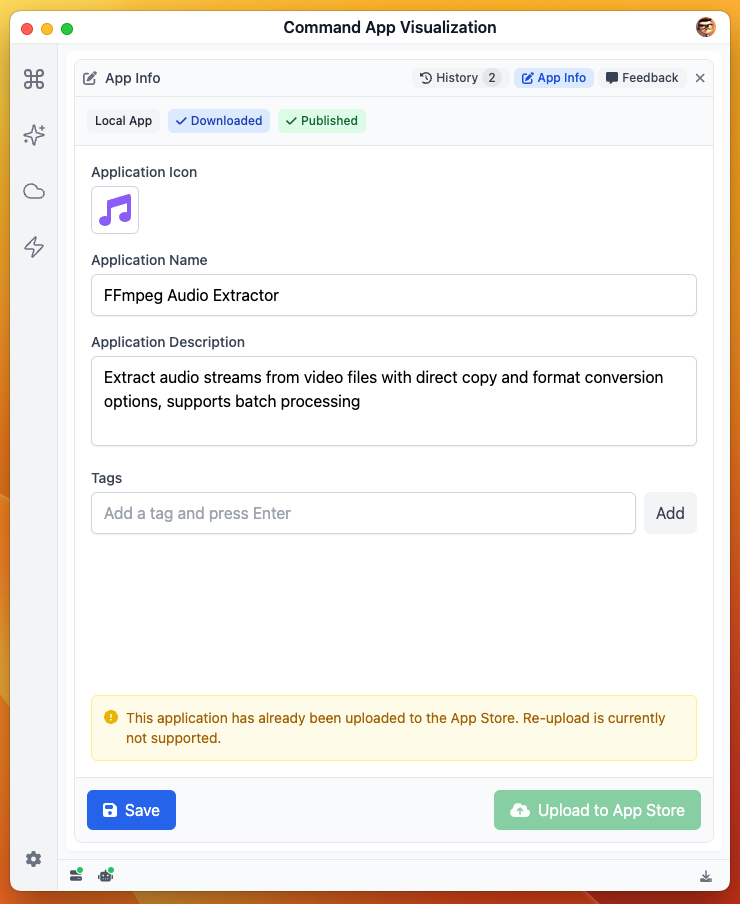
| Area | Function | Notes |
|---|---|---|
| Icon area | Click to replace Font Awesome icon | Supports custom color palette |
| Name/Description | Real-time edit local metadata | Must fill in name |
| Tags | Enter to add, × to delete | Used for search and categorization |
| Save | Local update, doesn't trigger upload | Refreshes timestamp after saving |
| Upload | Push to cloud marketplace | Requires login; uploaded apps are grayed out |
3.2 History Panel
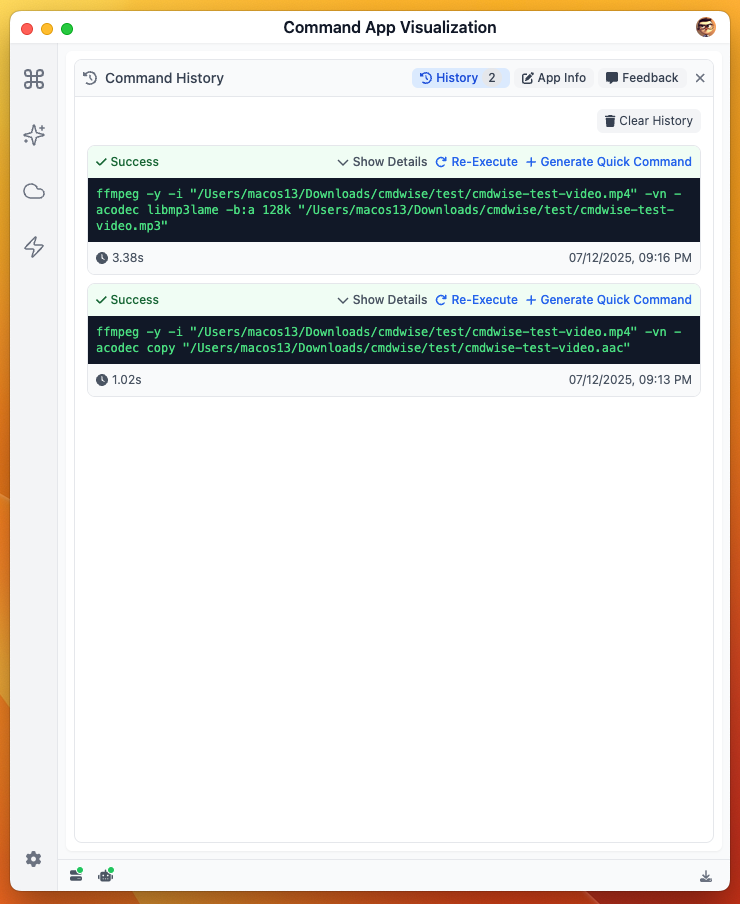
| Module | Purpose |
|---|---|
| List | Success/failure tags at a glance, click to expand stdout/stderr |
| Re-execute | Reuse old commands, skip refilling parameters |
| Generate quick command | One-click save as "Quick Command" |
| Clear history | Clear all, shows confirmation dialog before operation |
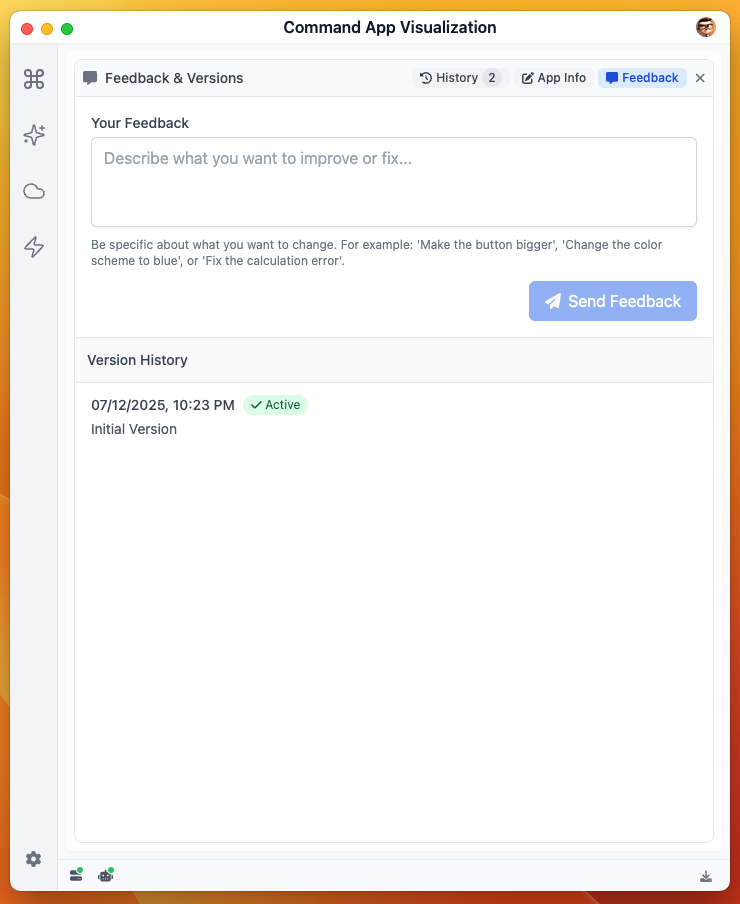
3.3 Feedback & Version Panel
| Function | Description |
|---|---|
| Send feedback | Input natural language, AI modifies HTML and generates new version |
| Version history | Timeline shows version numbers, sources, activation status |
| Switch version | Switch button instantly replaces visual HTML |
| Delete version | Non-active, non-initial versions can be deleted, system asks for confirmation |
| Official app prompt | Official apps are read-only, feedback entry disabled |
4. Usage Scenario Guide
See: Command App Scenario Guide
5. Common Issues
Upload button grayed out?
- Confirm you're logged in; when not logged in, it shows "Login to upload"
- For uploaded apps that need re-uploading, currently not supported
AI feedback failed?
- Check network; AI request timeout shows "AI Fix HTML Failed" prompt
- Feedback text must be specific, like "button click not responding, please change to async fetch"