ImageMagick Image to PDF Converter
Using the powerful ImageMagick convert command, quickly merge multiple images (such as JPG, PNG, WEBP, etc.) and convert them into a single, ordered PDF document. More feature-rich than the pdfly version, supporting more formats and custom options.
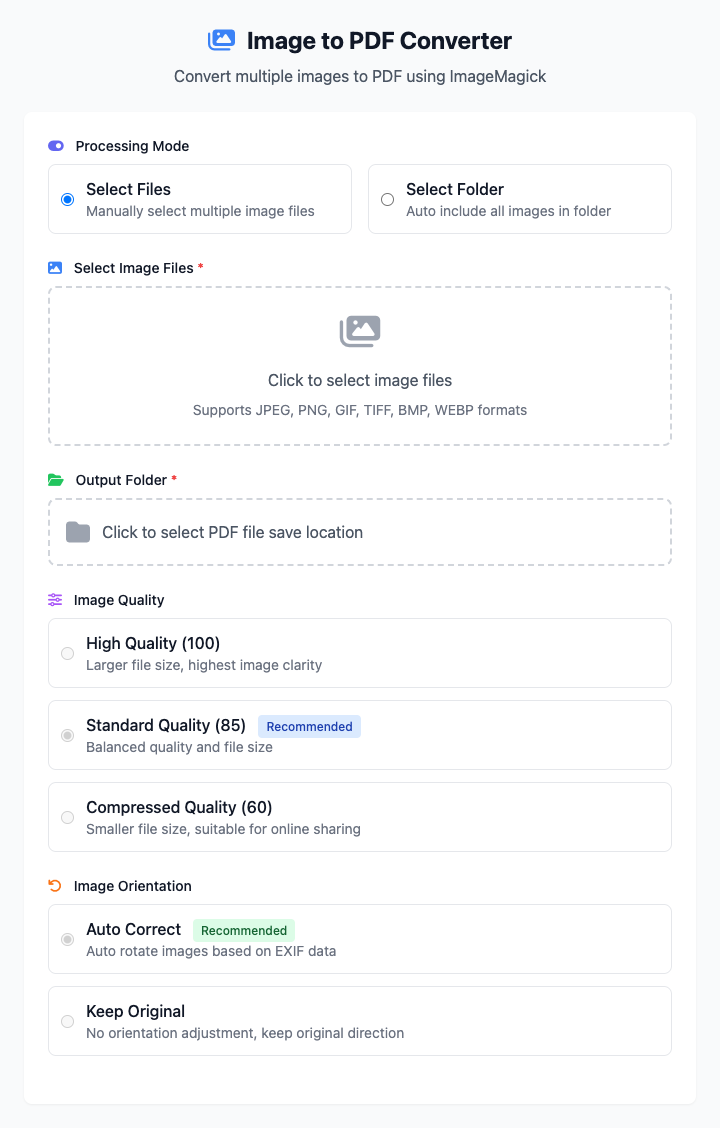
⚡️ Quick Start: Convert a Folder of Images to PDF
- In "Processing Mode", select Select Folder.
- Click to select a folder containing all images to be converted.
- Select an output folder to save the generated PDF.
- (Optional) Choose Standard Quality in "Image Quality".
- Click the "Execute" button. After the command completes, you'll get a converted PDF file.
🤔 When Should I Use It?
- You want to convert a folder containing hundreds of photos into a multi-page PDF album quickly and automatically.
- You need to mix images of different formats (
JPG,PNG,WEBP, etc.) together to generate a unified PDF file. - You not only want to convert but also hope to make some fine-tuning to the generated PDF, such as setting page size, orientation, or adding a title.
⚙️ Parameter Description
Processing Mode
- Select Files: Manually select one or more image files. File order will determine page order in the PDF.
- Select Folder: (Recommended for batch processing) Just select a folder, and the tool will automatically convert all supported images in that folder in filename order.
Image Quality
You can set compression quality for images in the PDF, which directly affects the final PDF file size and clarity.
- High Quality (100): Clearest images, but PDF files will be very large.
- Standard Quality (85): (Recommended) Achieves a good balance between clarity and file size.
- Compressed Quality (60): Smallest file size, but image quality will noticeably decrease.
Image Orientation
Controls how image orientation is handled in the PDF, especially for images containing EXIF orientation information.
- Auto-correct: (Recommended) Automatically rotates images to correct orientation based on EXIF information. Suitable for photos taken with phones, ensuring images display correctly oriented in the PDF.
- Keep Original: No orientation adjustment, maintains original image orientation. Choose this if images have no orientation issues or you want to maintain original state.
Advanced Options
- Page Size: You can specify a standard size for each PDF page, such as
A4,A5, orLetter. By default, page size adjusts automatically based on image dimensions. - Page Orientation: Choose
PortraitorLandscapeto control page layout. - PDF Title: Set a title for the generated PDF file, which will display in the PDF reader window or tab.
⚠️ Dependency Installation
Before using this tool, you need to install ImageMagick on your Mac. If you have Homebrew installed, just run this once in the terminal:
bash
brew install imagemagickRelated Tools
In the CmdWise app market, you can also find other PDF and image processing tools:
- PDFly Image to PDF Converter: A more lightweight alternative
- PDF Merger: Merge multiple independent PDF files into one
- SIPS Image Converter: Unify image format or size before conversion