Port Process Manager: One-Click Solution for Port Conflicts
Use the lsof (List Open Files) command to quickly find which program is occupying a specific network port, and optionally use the kill command to terminate it. This is the ultimate weapon for all developers to solve "Port already in use" errors.
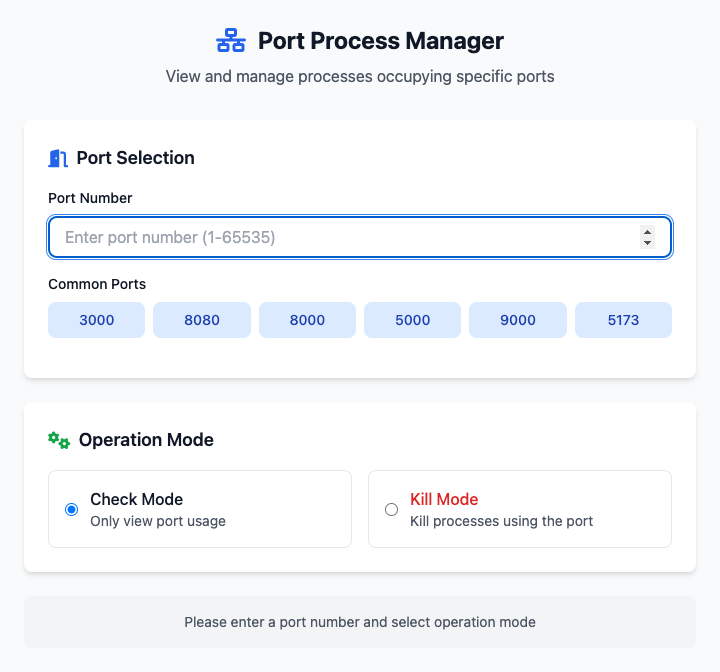
⚡️ Quick Start: Free Port 8080
- In the "Port Number" input field, enter
8080, or directly click the "Common Ports" button below. - Ensure "Operation Mode" is set to View Mode. The
lsofcommand will be generated below. Copy it to the terminal to execute and first see which process is occupying the port. - If you confirm you want to terminate that process, switch "Operation Mode" to Terminate Mode.
- Click the "Execute" button. After the command completes, the port will be freed.
🤔 When Should I Use It?
- You start a web development server (like Node.js, Python, Java) and the terminal shows
Error: listen EADDRINUSE: address already in use :::8080. - You're certain a program has closed, but it seems to still be occupying a network port in the background.
- You want to know if a specific port (like 3000, 5000) on your computer is currently being listened to by some program.
⚙️ Parameter Settings
Operation Mode
This is the most important safety setting of this tool, divided into two modes:
- View Mode: (Safe / Default) Only uses the
lsof -i :port_numbercommand to find and list process information currently occupying the specified port, no termination operations are performed. - Terminate Mode: (High Risk) Generates a
killcommand to terminate the found process. Please be sure to confirm in "View Mode" first, then use this mode cautiously.
Terminate Mode Options
When you switch to "Terminate Mode", you can choose to send two different signals:
- Gentle Termination (TERM): Tells the program "please exit normally". The program will have a chance to do cleanup work (like saving files). This is a more polite approach.
- Force Termination (KILL): (Default) Forces immediate process termination; the program has no chance to do cleanup. This approach is more "brutal" but ensures the process is terminated.
⚠️ High-Risk Operation Warning
Terminating processes is a high-risk operation. If you incorrectly terminate a system process or an application that is saving important data, it may cause data loss or system instability. Before using "Terminate Mode", please be sure to confirm the process name and PID through "View Mode" and ensure you understand the consequences of the operation.
Dependencies
This tool completely relies on the lsof and kill commands built into macOS, no additional dependencies need to be installed, ready to use out of the box.