Large File Finder: Locate Your Disk Space "Black Holes"
This is a graphical interface built for macOS's native find command, allowing you to quickly and accurately find individual large files taking up significant space on your computer without memorizing complex parameters.
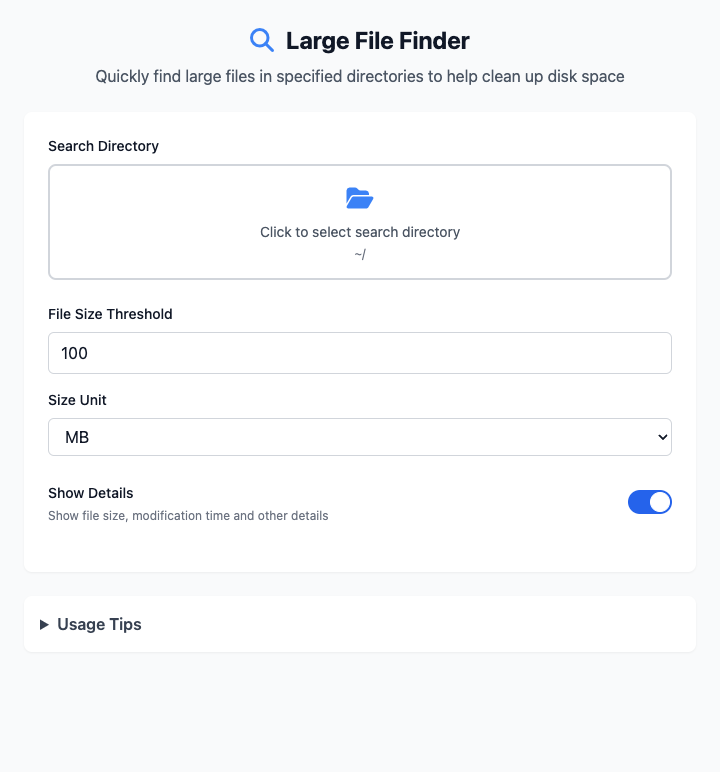
⚡️ Quick Start: Find Files Over 100MB
- In the "Search Directory" section, click to select a folder you want to check (e.g., your "Downloads" folder).
- Set the "File Size Threshold" to 100 and ensure the unit is MB.
- Click the "Execute" button. After the command completes, you'll see the results.
🤔 When Should I Use It?
- Your Mac shows disk space insufficient warnings, and you want to find out which specific files (like installers, videos, compressed files) are taking up large amounts of space.
- You want to clean up your "Downloads" folder but only want to see larger files to prioritize handling them.
- You know the
findcommand is powerful, but find parameters like-size,-type,-execconfusing.
⚙️ Parameter Settings
Search Directory: Click to select the root directory where you want to start searching. The tool will recursively check all files under this directory. Default is your personal home directory
~/.File Size Threshold: Set a standard where only individual files exceeding this standard will be displayed. You can customize the size and unit (MB/GB).
Show Detailed Information:
- Enabled: (Recommended) The command will additionally use
ls -lh, so results will not only show file names but also clearly list each file's specific size, modification date, and permissions, giving you a clear overview. - Disabled: Only lists file paths that meet the criteria.
- Enabled: (Recommended) The command will additionally use
⚠️ Important Notes
- This tool depends on macOS's built-in
findandlscommands, so no additional dependencies need to be installed. - To avoid permission issues and long waiting times, it's recommended not to directly select the entire system disk ("/") as the search directory. Instead, start from your personal home directory (
~/) or specific folders (like "Downloads", "Documents"). - The CmdWise app is responsive - after adjusting parameters, the command below will update in real-time, no "Run" button needed.
Related Tools
In the CmdWise app marketplace, you can also find other file management tools:
- Large Folder Finder: Find folders that take up the most space, rather than individual files
- .DS_Store Cleaner: Clean .DS_Store files generated by macOS in folders
- File Renamer: Batch rename files