Large Folder Finder: Discover Space "Devourers"
This is a graphical interface built for macOS native du (disk usage) command, allowing you to quickly find those "giant" folders taking up massive space on your computer without opening terminal.
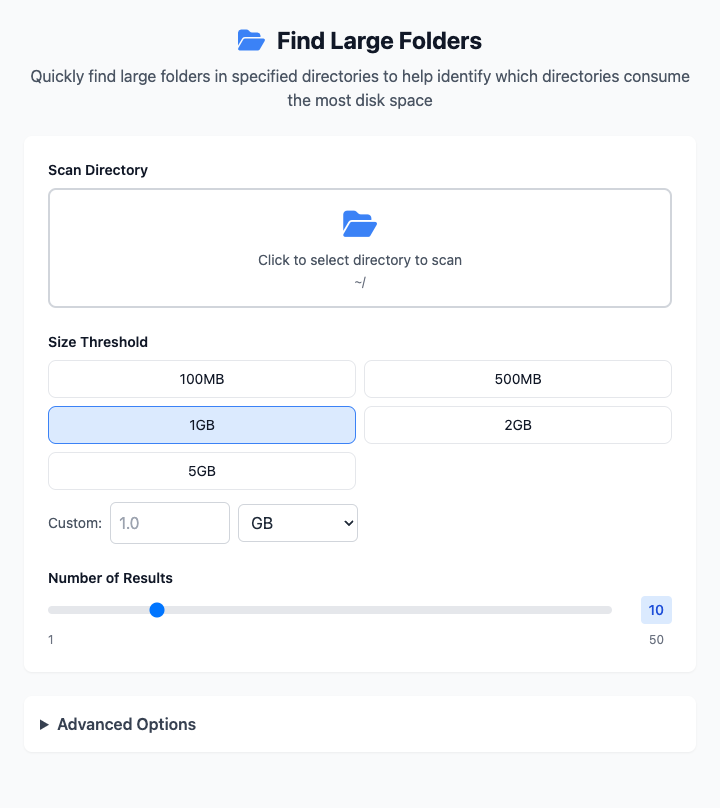
⚡️ Quick Start: Find Folders Over 1GB
- In the "Scan Directory" area, click to select a folder you want to check (e.g., your "Downloads" or "Documents" folder).
- In the "Size Threshold" section, click the 1GB preset button.
- Click the "Execute" button.
- Wait a few seconds and results will appear below.
🤔 When should I use it?
- Your Mac alerts you about insufficient disk space, but you're not sure which files are taking up space.
- You want to regularly clean your computer and delete large files or folders you no longer need.
- You know the
ducommand is useful but can't remember those complex parameter combinations.
⚙️ Parameter Description
Scan Directory: Click to select the root directory where you want to start scanning. The tool will recursively check all subfolders under this directory. Default is your personal home directory
~/.Size Threshold: Set a standard - only folders exceeding this size will be displayed.
- Preset Buttons: We provide common presets from
100MBto5GB, click once to use. Default is1GB. - Custom: You can also precisely specify size and unit (MB/GB) in the input box below.
- Preset Buttons: We provide common presets from
Number of Results: By dragging the slider, you can control the number of final results displayed, ranging from 1 to 50. This helps you focus on the few folders taking up the most space.
Advanced Option - Include Hidden Folders: When checked, the tool will also scan hidden folders starting with dot
.(like some application cache directories.cache).
⚠️ Notes
- This tool relies on the
ducommand built into macOS, so no additional dependencies need to be installed. - Scanning a very large directory (like the entire hard drive) may take considerable time, please be patient.
- CmdWise apps are responsive - after adjusting parameters, the command below will update in real-time, without a "run" button.
Related Tools
In the CmdWise app marketplace, you can also find other file management tools:
- .DS_Store Cleaner: Clean .DS_Store files generated by macOS in folders
- Batch File Renamer: Batch rename files
- File Link Creator (ln): Create aliases for files or folders