QR Code Terminal Generator: "Scan" in the Command Line
qrcode-terminal is a lightweight tool that can convert any text or URL link into a QR code made entirely of ASCII characters and display it directly in your Terminal window. This is very convenient for scenarios where you need to quickly send links from computer to mobile.
⚡️ Quick Start
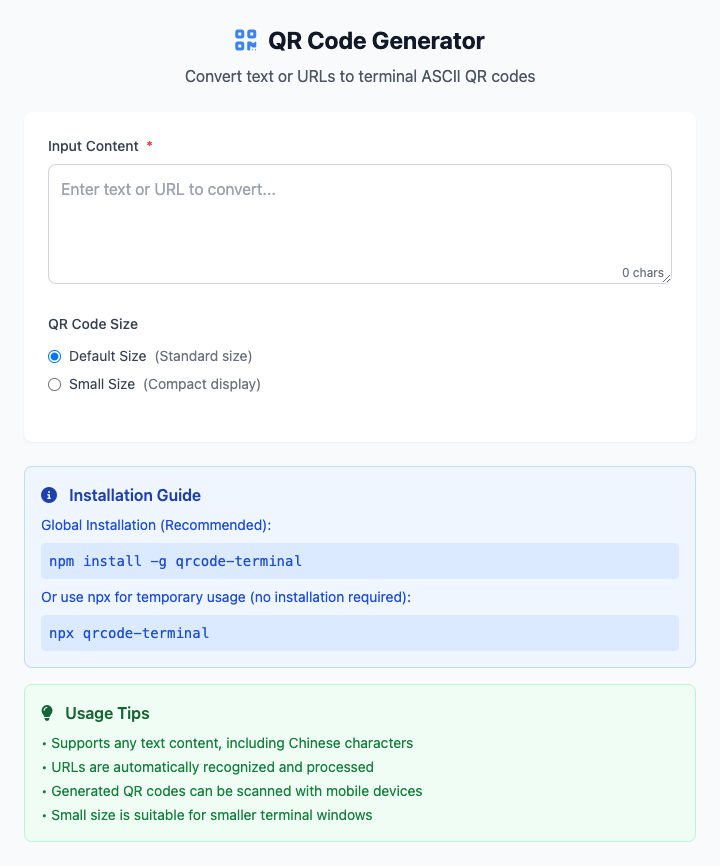
- Input Content: Paste a URL in the input box, for example
https://www.cmdwise.com. - Click "Execute" Button: After the command completes, you'll see the generated QR code. Try scanning it with your phone!
🤔 When Should I Use It?
- You're a developer who needs to quickly share a URL in server logs or terminal output, allowing colleagues to scan and access with their phones.
- You want to generate a dynamic QR code after script execution (for example, a temporary file download link or test server address).
- You just think displaying QR codes in the terminal is a really cool thing to do.
⚙️ Parameter Settings
Input Content: Any string you want to encode, such as a website address.
QR Code Size:
- Default Size: Generates a standard-sized QR code, suitable for most situations.
- Small Size: Generates a more compact QR code, suitable for smaller terminal interfaces or shorter content scenarios.
⚠️ Important Notes
- This command depends on Node.js and npm/npx environment. Please ensure Node.js is installed on your computer.
- While this tool can handle Chinese characters, overly long text may cause the generated QR code to be too complex and difficult to scan. It's recommended to keep input content reasonably short.
- After parameter adjustments, the command below will update in real-time.
Related Tools
In the CmdWise app marketplace, you can also find other QR code related tools:
- QR Code Image Generator: If you need to use it in web pages or design drafts, this tool can generate standard QR code image files (PNG).